Complete Guide to Scheduling a YouTube Live Stream

Chief Executive Officer
In today’s fast-paced digital landscape, live streaming has become an essential tool for communication, brand engagement, and audience interaction. Whether you’re a corporate executive planning a product announcement, a government body hosting a public forum, or a social organization running a virtual fundraiser, live streams are a powerful way to connect with your audience in real time.
One platform that has revolutionized live streaming is YouTube, offering tools to schedule and optimize live events for maximum impact. Scheduling your YouTube Live stream not only allows your audience to plan ahead but also enhances discoverability, ensuring your message reaches the right audience.
This comprehensive guide walks you through the process of scheduling a live stream on YouTube while incorporating strategies to make it seamless and effective.
Why Schedule a YouTube Live Stream?
Scheduling a live stream on YouTube offers several key benefits:
- Audience Awareness and Engagement: By scheduling in advance, you notify your subscribers and wider community about your event, giving them time to prepare and tune in.
- Discoverability: When set up correctly, scheduled streams can leverage YouTube's algorithm to reach a broader audience, even before the event begins.
- Professionalism: A well-organized stream reflects your brand’s credibility, showing your audience that their time and participation are valued.
For event professionals, decision-makers, and marketers, understanding the technical and strategic aspects of scheduling is crucial for flawless execution. Let’s dive into the step-by-step process.
sbb-itb-ae35a94
Step 1: Start with the Basics
To schedule your live stream, begin by accessing YouTube’s Live Studio. Follow these steps:
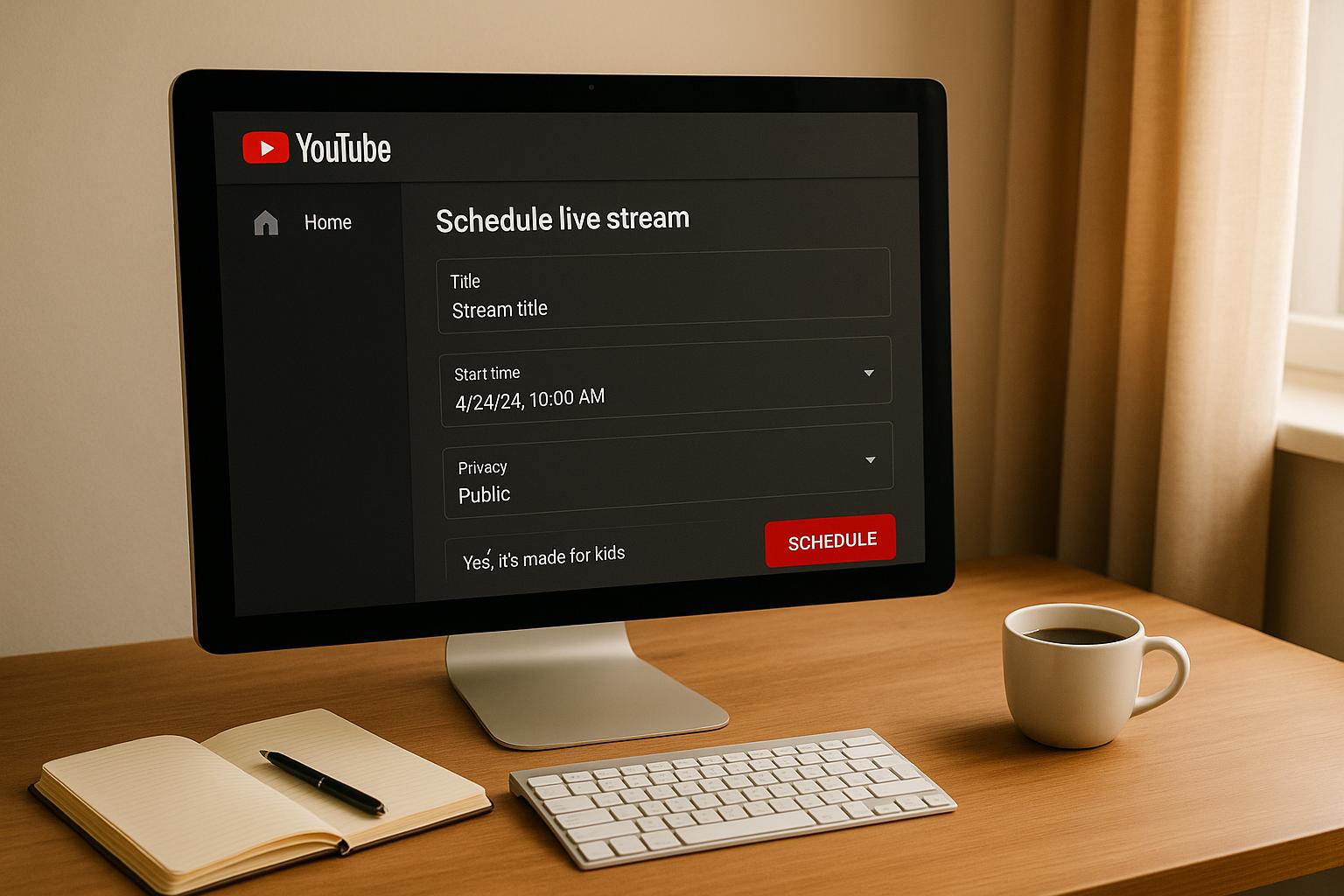
- Log into Your YouTube Account and navigate to the top-right corner of the screen. Click the "Create" button, then select Go Live.
- Once the Live Studio loads, head to the Manage tab on the left-hand side.
- In the top-right corner, click Schedule Stream.
From here, you’ll have the option to reuse settings from a previous stream or create a new one. For new events, choose Create New.
Step 2: Set Up Your Stream Details
Scheduling your live stream is similar to uploading a video. Pay close attention to the following elements to optimize your stream:
1. Title and Description
- Title: Choose a title that grabs attention and accurately represents your event. Use keywords that reflect your topic or purpose.
- Description: Focus on the first 100-150 characters. Include relevant keywords and provide clear details about the stream. This helps YouTube’s algorithm categorize your content effectively.
2. Thumbnail
The thumbnail is your stream's visual hook. Design one that is high-quality, eye-catching, and relevant. Ensure it meets YouTube’s requirements (1280 x 720 resolution, under 2MB file size).
3. Stream Category
Assign the appropriate category to your stream, such as "Gaming", "Education", or "Business." This ensures your content is grouped with similar topics, increasing discoverability.
4. Audience Settings
- Specify whether your stream is made for kids to comply with the Children’s Online Privacy Protection Act (COPPA).
- Decide if your content requires an age restriction (e.g., 18+).
Step 3: Advanced Features for Better Engagement
After entering the basic details, explore YouTube’s advanced features to enhance your stream’s effectiveness:
1. Tags
While there’s debate over their relevance, tags can still help YouTube identify topics your content covers. Tools like VidIQ or RapidTags can assist in generating effective tags. Stay within the 500-character limit.
2. Playlists
Add your stream to a relevant playlist. For example, event planners can use a playlist for archived webinars or past live events, making it easier for audiences to revisit content later.
3. Live Chat and Replay
Enable Live Chat for real-time engagement during your stream. Also, turn on the Live Chat Replay feature to provide context for viewers who watch the event later.
Step 4: Optimize Visibility and Stream Quality
1. Schedule the Event
- Choose whether your stream will be Public, Unlisted, or Private.
- Use the scheduling tool to set your stream date and time. This is especially important for corporate webinars or global events to accommodate different time zones.
2. Stream Latency
Select the appropriate latency setting:
- Ultra Low Latency: Ideal for real-time interactions, such as Q&A sessions.
- Normal Latency: Suitable for high-quality streams, especially if you’re using closed captions or 4K resolution.
3. Stream Key
Copy your unique Stream Key and paste it into your streaming software (e.g., OBS, Streamlabs). This allows your broadcast to connect seamlessly to YouTube.
Step 5: Test and Go Live
Before going live, double-check your settings to ensure everything is in place:
- Preview the Stream: Use YouTube Studio to preview your broadcast and fix any technical issues.
- Disable Auto-Start: Avoid enabling Auto-Start and Auto-Stop to give yourself control over when the stream begins and ends. This precaution is especially useful if technical problems arise.
Once you’re satisfied, hit Go Live and connect with your audience!
Key Takeaways
- Plan Ahead: Scheduling your live stream in advance builds anticipation and allows your audience to prepare.
- Optimize for Discoverability: Use keywords, compelling titles, and strategic descriptions to improve visibility in YouTube’s algorithm.
- Leverage Advanced Features: Enable live chat, live chat replay, and playlists to enhance viewer engagement and content organization.
- Test Before Streaming: Double-check your settings, especially latency and Auto-Start options, to avoid disruptions.
- High-Quality Visuals: Invest in professional thumbnails and ensure your stream resolution meets audience expectations.
By following these steps, professionals and decision-makers across industries can create impactful live stream experiences that resonate with their audience.
Conclusion
Scheduling a YouTube Live stream is more than just a technical process. It’s an opportunity to create a well-executed and engaging event that aligns with your brand’s goals. By combining best practices with attention to detail, you can maximize the value of live streaming for your business or organization.
Live streaming isn’t just about going live - it’s about connecting with your audience in a meaningful way. With these insights, you’re now equipped to make your next live event a success.
Source: "How to Schedule a Live Stream on YouTube" - Blindkreaper, YouTube, Jan 1, 1970 - https://www.youtube.com/watch?v=d1m0DCIe9Ig
Related Blog Posts


Streamline your workflow, achieve more

Lorem ipsum dolor sit amet, consectetur adipiscing elit. Maecenas ac velit pellentesque, feugiat justo sed, aliquet felis.



Lorem ipsum dolor sit amet, consectetur adipiscing elit. Maecenas ac velit pellentesque, feugiat justo sed, aliquet felis.