Planning A Company-Wide Town Hall? Corporate Optics Can Help You Reach The Room And The Stream.

Chief Executive Officer
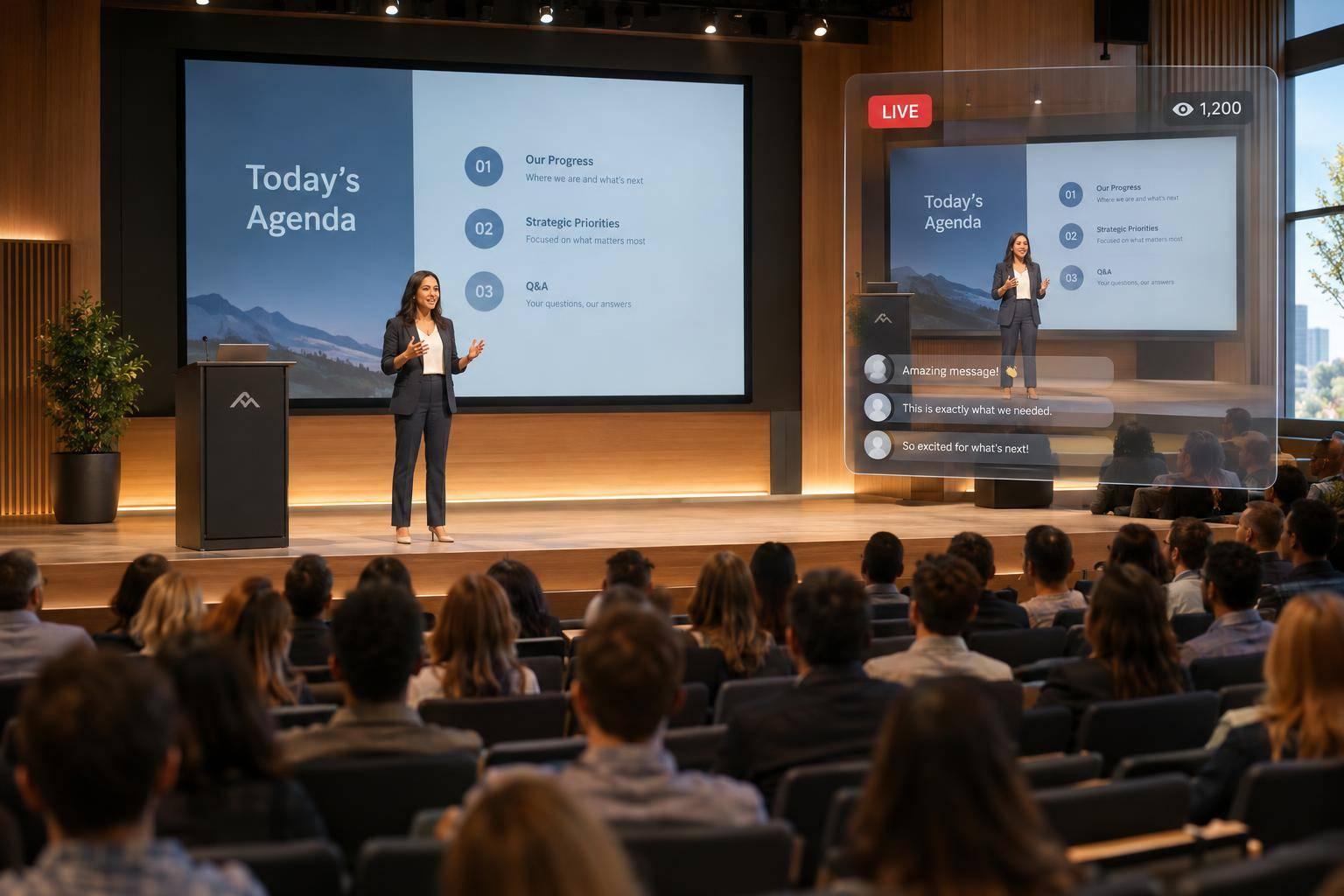
I’d plan your town hall as one event with two audiences: the room and the livestream. Start with the message employees need to hear, assign owners for each production task, and test the stream at least one week before the event.
I’d use this checklist to guide the work with Corporate Optics:
- Set the plan: Confirm your hybrid meeting planning details, including audience, budget, speakers, schedule, employee access, captions, and recording rules.
- Prepare both feeds: Check room sound, stream audio, cameras, slides, remote speakers, and Q&A.
- Test and rehearse: Keep stream bitrate below 50% of tested upload speed, and practice microphone, internet, and playback backups.
- Check the results: Monitor the room and employee viewing experience, verify the recording before teardown, and review viewing data afterward.
My priority: <u>make the message easy to hear and follow</u> - whether employees attend in person, live online, or through the replay.

Company Town Hall Production: Room and Livestream Checklist
Plan Venue AV for the Room and Livestream
The room and livestream need separate feeds that carry the same message. Once the run of show is set, map every cue to both feeds.
Check the Venue Layout and Technical Setup
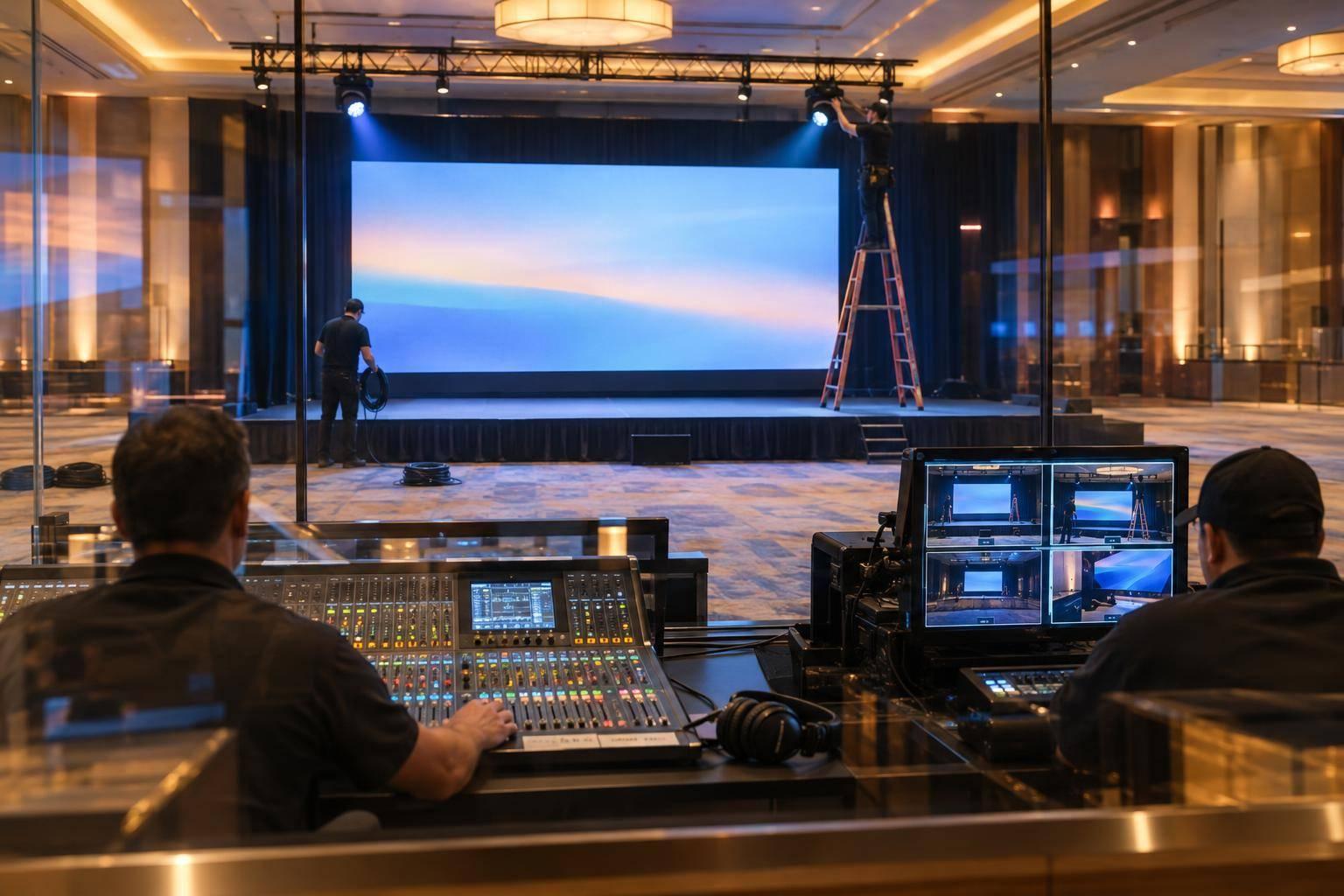
Complete a venue-survey checklist with Corporate Optics and venue staff. Review seating, stage dimensions, screen sightlines, camera positions, ambient noise, lighting, available power, cable routes, crew access, rigging restrictions, and the control position. Make sure cameras have clear views and cable routes meet venue requirements.
Ask venue IT to confirm dedicated wired Ethernet at the encoder position, sustained upload speed, network isolation, firewall permissions, credentials, and any static-IP requirements. Keep the total stream bitrate below half the tested upload speed, and run that test at the encoder’s exact location. Agree on a backup connection, test it separately, and confirm it doesn’t use the same network path.
Provide Clear Audio for Both Audiences
Give each panelist an individual mic input. Use lavalier or headset mics for presenters who move around, plus a dedicated audience-question mic that feeds both mixes.
Build two coordinated mixes: one for the room and a clean speech mix for the stream. The room mix should provide even loudspeaker coverage. The stream mix should focus on clear speech and consistent levels. Send the clean stream mix directly to the encoder, rather than picking up sound from room loudspeakers.
Assign someone to monitor the stream feed through headphones and someone to check room coverage separately. Keep a tested backup microphone, new batteries, and spare cables ready.
Keep these room-and-stream differences in view:
| Area | In-room objective | Livestream objective |
|---|---|---|
| Signal path | Deliver sources to room displays and loudspeakers | Send a composed stream feed to the encoder and platform |
| Microphones and mixing | Provide comfortable, feedback-free reinforcement | Produce consistent speech levels and clean mixed audio |
| Displays and visuals | Make slides and speakers visible from every seat | Combine camera shots, slides, graphics, and remote guests in a readable layout |
| Monitoring | Check sightlines, loudspeaker coverage, and confidence monitor | Check stream audio, video, latency, captions, and viewer layouts |
Prepare Slides and Media for Playback
Collect the final presentation package early. Test it on the presentation computer, display system, and switching workflow you’ll use at the event. Confirm the required aspect ratio - commonly 16:9 - along with resolution, fonts, animations, speaker notes, clicker use, embedded video and audio, and transition timing. Play every clip from start to finish and check that its audio reaches both mixes.
Content-readiness checklist:
- Deliver the final slide deck and media by the agreed deadline.
- Power up the presentation computer and test it with venue inputs. Have a backup computer or local duplicate files ready.
- Embed fonts, linked assets, videos, audio, animations, and transitions, or supply them separately.
- Confirm the aspect ratio, resolution, and screen layout for venue displays.
- Position the confidence or notes monitor so speakers can read it without turning away from the audience.
- Test the stream layout for slides, lower-thirds, speaker shots, remote guests, and audience questions.
- Test every clip through both the room and stream mixes.
- Keep a PDF backup available in case fonts, animations, or media fail.
sbb-itb-ae35a94
Plan Cameras and Livestream Production
Match Camera Shots to the Agenda
Once the run of show is locked, map every agenda item to a camera or source. Create a cue sheet covering presenters, panels, audience questions, graphics, and prerecorded videos. Include the speaker name, camera number, playback cue, and one assigned owner for each cue.
Plan a primary presenter shot, a backup or stage shot with a broader view, a panel angle, and an audience-question camera position when needed. During dialogue, use speaker shots to show the room’s live energy. Switch to full-frame slide feeds when charts or dense content need to be easy to read on the stream.
Connect Remote Speakers and Audience Questions
Confirm each remote contributor’s device, connection, speaking role, time zone, and backup contact. Test return video and mix-minus audio so speakers can hear the program without a delayed echo. Assign a backstage coordinator to check readiness, send private cues, and manage handoffs.
Set question-screening rules for timing, anonymity, and confidential topics. Have the moderator read selected online questions aloud so people in the room can follow along. Send approved questions to the show caller so the switcher can move between the moderator, question graphic, and respondent.
Set Livestream Access and Delivery Requirements
With remote guests and question handling in place, lock the platform’s delivery specs. Have Corporate Optics document the destination’s required codec, resolution, frame rate, bitrate, keyframe interval, and audio format. Use 1080p at 25 or 30 fps and 4.5–6 Mbps as a planning range when those settings match the destination’s requirements.
Agree on an acceptable delay for audience questions. Work with IT and internal communications to confirm supported devices and caption delivery so employees watching live can follow the company-wide message. Test access as an employee, check captions, and share join instructions that include the event’s time zone and a troubleshooting contact.
Test, Rehearse, and Prepare Backup Plans
Test the Full Production Path
Once the delivery plan is locked, test every signal path before event day. Schedule the encoder and livestream destination test at least one week before the event. With Corporate Optics, check each signal for the room and the stream, from source to output, including captions and recording. Test in the actual venue using final content, the production computer, the live network, and typical employee devices.
Assign a named owner to each check. Use this matrix to track responsibilities and confirm that each fallback works.
| Area | Test | Owner | Fallback |
|---|---|---|---|
| Audio | Check all microphone, playback, and remote-speaker sources in both mixes | Audio lead | Spare microphone, batteries, cable, and channel |
| Video | Check camera framing, focus, exposure, lighting, and switching | Video lead | Alternate camera or holding graphic |
| Slides/media | Load approved slides, fonts, videos, and graphics; verify aspect ratio and playback | Presentation operator | Mirrored presentation computer and exported stills/PDF |
| Internet | Test upload stability, firewall access, encoder settings, and platform connection | Streaming engineer and venue IT | Tested secondary connection |
| Remote links | Test camera, microphone, return audio/video, cue timing, and captions from the speaker’s location | Remote-speaker producer | Phone dial-in, prerecorded contribution, or alternate speaker |
| Recording | Check program recording, storage capacity, and file format | Recording operator | Second recorder or platform recording |
| Captions | Verify caption source, sync, and readability | Accessibility or stream lead | Tested fallback caption source |
Once every path passes, rehearse the event exactly as it will run.
Rehearse Transitions and Backup Procedures
Run a full rehearsal with the final show order, stage positions, mics, slides, graphics, playback, questions, captions, and recording. The goal is a consistent town hall experience in the room and online. Practice transitions through the live path so operators and presenters learn the same cues.
Practice the backup procedures, too. Switch to backup internet while keeping local recording running. Hand over a spare microphone, cut away from a failed camera, replace missing media with approved backup content, and move a disconnected remote speaker to the agreed fallback.
Document who detects each issue and who approves the response. The communications lead approves message or agenda changes, the show caller controls timing, and the stage manager cues presenters. Ask Corporate Optics to document open issues and deadlines.
Monitor the Room and Employee Viewing Experience
After rehearsal, move to live monitoring to keep the room and stream aligned once doors open.
Before guests enter, check signal status, primary and backup connectivity, employee stream access, room and broadcast audio, captions, recording, and escalation contacts.
Assign one production monitor and one viewer monitor. The production monitor checks signal status. The viewer monitor watches as an employee would, checking speech, slide readability, synchronization, and captions. Keep both checks running throughout the event.
Conclusion: Finalize the Town Hall Production Plan
Send Corporate Optics a final production brief covering the event date, time zone, venue, audience counts, agenda, presenters, platform, accessibility needs, recording terms, distribution limits, budget range, and primary contacts. Use this brief to coordinate the room and stream. Request a written scope that separates room AV, cameras, content playback, streaming, testing, and rehearsal. Confirm who supplies, operates, approves, and backs up each element.
Set the schedule, assign roles, and confirm post-event deliverables and ownership. Check load-in timing, venue access, technical constraints, and the quote’s inclusions, assumptions, and exclusions. Agree on recording delivery, captions, editing scope, publication approval, replay access, hosting, and the retention period.
Before teardown begins, check the recording and backup copy after the last cue. Make sure the archive meets the same standards as the live event: clear speech, readable visuals, correct camera framing, synchronized audio and video, and required captions. Document any unexpected interruptions. Then review available analytics, including viewer counts, watch time, drop-off points, Q&A activity, and stream performance metrics.
Store the final run of show, presentation and media files, cue sheets, and incident log alongside the final production records and analytics. During the debrief with Corporate Optics, use the room and stream results to identify changes for the next room-and-stream town hall. Assign an owner and due date to each change.
FAQs
How can Corporate Optics scale production to our budget?
Corporate Optics can scale production to fit your budget, audience size, and risk level. Start with 2–3 high-quality cameras, a switcher, and an audio mixer, then add only what you need.
To keep the stream reliable without overspending, prioritize separate audio for the room and livestream, plus hardwired internet with tested upload capacity. A documented silent failover plan should include backups, such as dual encoders and an alternative internet connection, to keep the stream running.
How can we protect confidential town hall content?
Protect your stream with single sign-on (SSO), encryption, and domain restrictions so only employees with permission can access it. For sensitive topics, use moderated Q&A, timestamped logs, and a pre-approved question order to keep the discussion under control.
Share recordings and supporting files only according to agreed-upon consent rules for names, faces, and participant data. Follow established access protocols and distribution channels to keep information secure.
How can we measure whether our message reached employees?
Track engagement across both audiences, then bring the results together. For virtual attendees, monitor watch time, peak viewer counts, drop-off points, and participation in moderated Q&A, live polls, and chat. Gather feedback from in-person attendees through event apps, response systems, and post-event surveys.
Corporate Optics can help combine engagement data, technical logs, and survey results into post-event reports to measure ROI and pinpoint ways to improve future town halls.
Related Blog Posts
- Tips For Organizing A Corporate Town Hall With Professional Production
- 5 Ways Production Companies Support Executives During Town Hall Events
- The Best Hybrid Meeting AV Production Company And What They Provide For Your Next Town Hall.
- Experienced Vendors To Help Produce And Stream Corporate Town Hall To Thousands


Streamline your workflow, achieve more

Lorem ipsum dolor sit amet, consectetur adipiscing elit. Maecenas ac velit pellentesque, feugiat justo sed, aliquet felis.



Lorem ipsum dolor sit amet, consectetur adipiscing elit. Maecenas ac velit pellentesque, feugiat justo sed, aliquet felis.