Best Practices For AV Production Of A Board Of Directors’ Meetings.

Chief Executive Officer
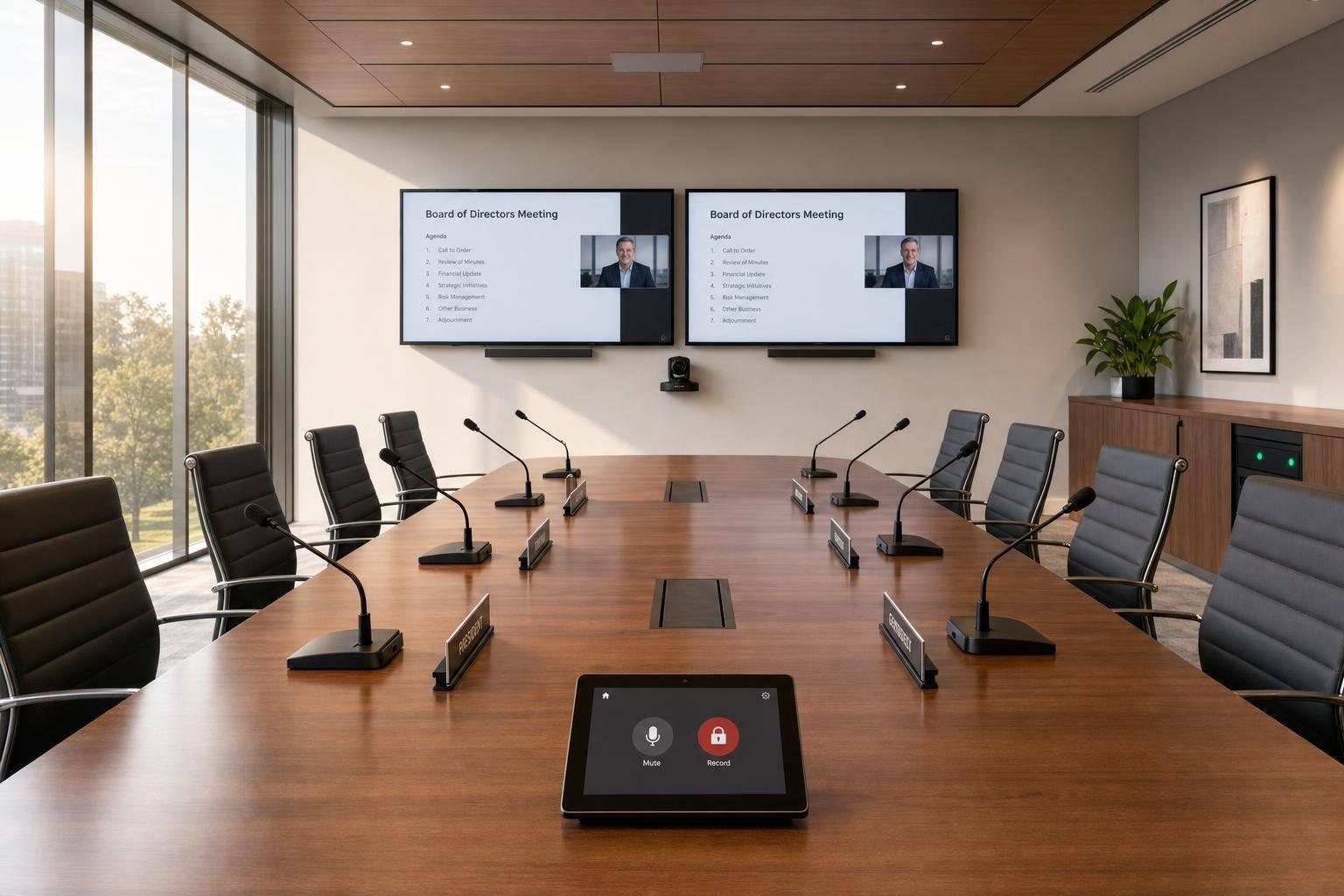
Board meeting AV has one job: work without failure while keeping private discussion private.
If I were setting this up, I’d focus on six things first: clear audio, clean sightlines, fast presentation switching, low-latency remote access, backup paths, and tight recording control. The article makes one point clear: a basic conference room setup is not enough when board members are discussing items like M&A, legal risk, or formal votes.
Here’s the article in plain English:
- I need to map the room before buying gear
- I need microphones that fit the table shape and seat count
- I need cameras and displays placed for eye contact, not awkward angles
- I need dual displays for people and content
- I need remote directors to join, speak, and vote without delay
- I need backup audio, video, power, and internet before quorum starts
- I need an in-room operator watching the system the whole time
- I need strict rules for recording, file access, and archive storage
A few hard numbers stand out:
- Some array microphones cover up to 6 meters in a 360-degree pickup zone
- Hybrid meeting latency should stay under 2 frames
- Display sizing can start with the 4:6:8 viewing-distance rule
- Camera lighting often targets 5600K for natural skin tones on video
Bottom line: I’d treat boardroom AV as a risk-control system, not a room upgrade. That means stable sound, clear video, backup at every weak point, and no recording unless approved.
The rest of the article breaks down how to set that up in the room, during the meeting, and after the meeting ends.
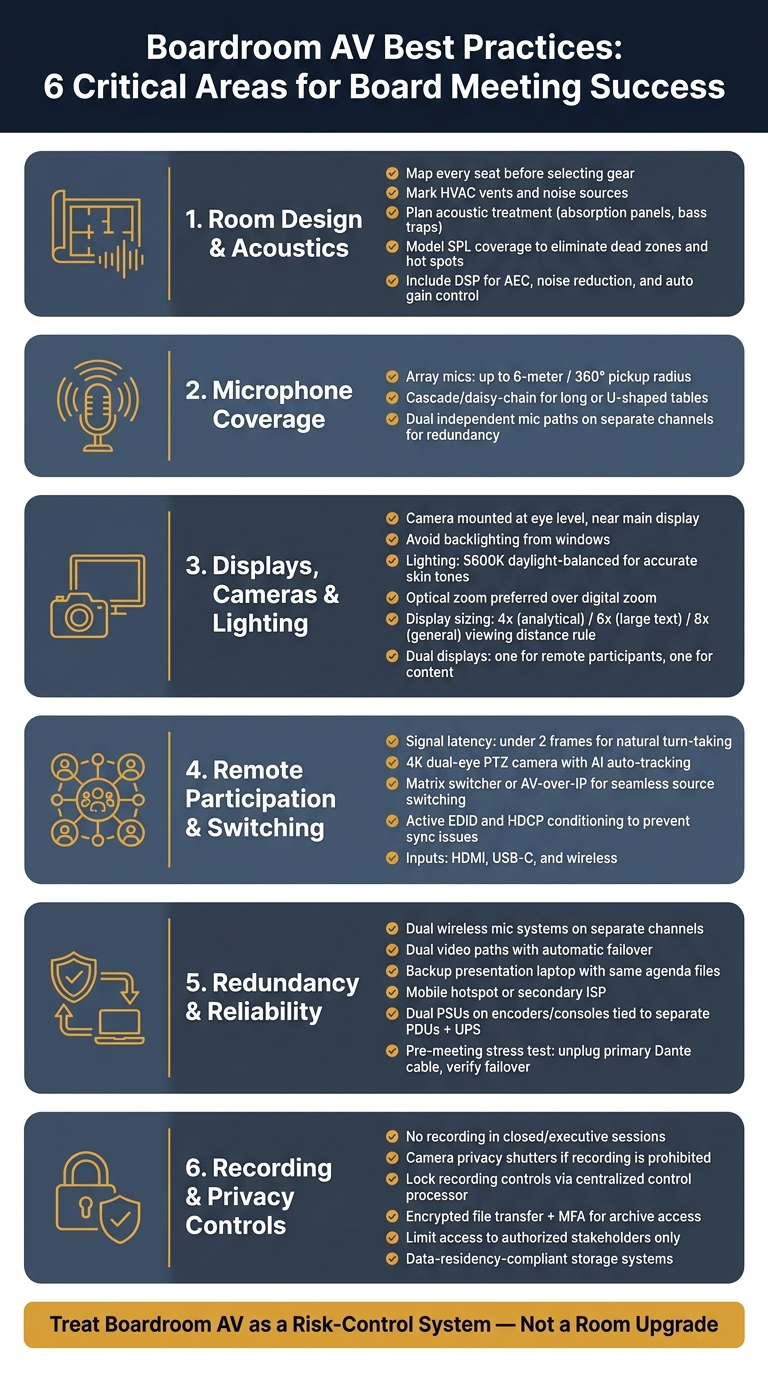
Boardroom AV Setup: 6 Critical Areas for Flawless Board Meetings
Design the Room Around Audio Coverage and Sightlines
Before you choose a microphone or camera, map the room. Mark every seat, note HVAC vents and other noise sources, and measure reverberation early so you can plan acoustic treatment like absorption panels or bass traps before installation. If the room has pillars or a low ceiling, check sightlines during the design phase so every seat has a clear view. Those details shape microphone spacing, speaker placement, and camera height.
Then use that room data to model speaker coverage patterns so sound pressure level (SPL) stays even across every seat. You want to avoid dead zones, where a director sounds far away, and hot spots, where audio feels too loud. It also makes sense to plan for a Digital Signal Processor (DSP) from day one. The DSP handles acoustic echo cancellation (AEC), noise reduction, and automatic gain control.
Choose the Right Microphone for the Table and Room Size
The right microphone comes down to table shape, room size, and the number of directors in the room. Many modern array microphones offer a 360-degree pickup radius of up to 6 meters. That gives you a solid starting point when you match seating to microphone coverage.
For long or U-shaped tables, one microphone array usually won't cut it. In those setups, cascaded or daisy-chained audio systems help keep voice pickup even across the table and reduce level loss over distance. For quorum-critical meetings, use two independent microphones on separate channels, so one hardware failure doesn't shut down the discussion.
Place Displays, Speakers, and Cameras for Natural Eye Contact
Use the same seat map to set camera height and display placement. Mount the main camera at eye level, just above or below the main display, so remote colleagues feel like they're being addressed directly. Put the camera too high, and you end up with cropped overhead shots that make remote participants feel removed from the conversation.
Keep the camera away from a bright window behind the speakers. Backlighting can turn in-room participants into silhouettes and makes facial expressions harder for remote attendees to read. Window treatments or a small room-layout change can fix that. For lighting, use daylight-balanced 5600K fixtures to keep skin tones accurate on camera. And when you choose a camera, prioritize optical zoom over digital zoom. Optical zoom keeps detail intact, while digital zoom crops the image and cuts image quality at the far end of a long table.
For display sizing, use the 4:6:8 rule as a starting point:
- 4x viewing distance for analytical viewing
- 6x for large text
- 8x for general viewing
Loudspeakers should also deliver even SPL across the room.
sbb-itb-ae35a94
Build a Meeting Workflow for Presentations and Remote Participation
With room audio and sightlines set, the next job is making agenda changes and presentations feel smooth. Board meetings work best when the room can move from discussion to presentation to decision without awkward pauses.
Use Dual Displays and Seamless Source Switching
Use two displays: one for remote participants, and one for slides, resolutions, and board materials.
Source switching is where things often go sideways. A matrix switcher or AV-over-IP system lets you move between a laptop, room PC, and document camera without jarring resolution changes. Active EDID and HDCP conditioning helps stop sync issues during transitions. It also helps to offer HDMI, USB-C, and wireless inputs, so directors can present without getting stuck hunting for the right adapter.
A tabletop touch panel gives executives a simple way to start the meeting and switch content with one tap.
Once switching works the way it should, the next question is simple: can remote directors keep up and jump into the conversation without friction?
Give Remote Directors Equal Access to Discussion and Decisions
Equal participation for remote directors starts with low latency. A signal path with less than 2 frames of latency keeps turn-taking natural in hybrid discussions.
Use a 4K dual-eye PTZ camera with AI auto-tracking so remote directors see the active speaker instead of a fixed wide shot.
Use a two-way hybrid bridge so remote directors can speak, vote, and follow the discussion without delay.
Plan for Reliability With Redundancy, Testing, and Live Support
Once the room can handle discussion and hybrid participation, reliability becomes the last thing you need to lock down.
A board meeting happens in real time. After quorum is called, there’s no room for guesswork. Every critical path needs a backup and someone ready to step in right away.
Add Backup Paths at Every Critical Point
Before the meeting starts, every critical part of the system should have a backup ready to go. That includes dual microphone paths for key speakers, a second presentation laptop loaded with the same agenda files, and a mobile hotspot or secondary ISP connection in case the main network drops.
For microphone redundancy, use two separate wireless systems on different channels so local wireless interference can’t knock both out at once. On the video side, use dual video paths with automatic failover. Critical devices like encoders, stage boxes, and mixing consoles should have dual power supply units tied to separate power distribution units, with UPS backup in place.
If the main audio feed fails, automatic failover should switch the system to backup audio right away.
Run a Technical Check Before Quorum and Keep an Operator in the Room
Backups only help if you prove they work before the meeting begins.
A pre-meeting check should push the system a bit. Don’t just make sure it turns on. Unplug the primary Dante network cable and confirm the secondary path takes over cleanly. Switch to the backup presentation laptop and make sure EDID/HDCP conditioning stops black-screen errors. Then test the remote feed from end to end.
During the meeting, a dedicated in-room operator is not optional. That person should watch the signal chain, keep an eye on camera controls and source switching, and trigger hot-spare paths the moment something starts to slip. The goal is simple: fix issues before anyone in the room notices. Keep an on-site operator present to monitor signal paths, switch sources, and activate backups without interrupting the meeting.
After that’s set, the next step is to lock down recording and file-handling rules.
Control Recording, Privacy, and Post-Meeting File Handling
With live support in place, recording shifts from a default habit to a governance call. Tell participants what will be recorded, and decide who has approval to start capture before the meeting begins.
Set Clear Recording Rules and Access Controls
Recording can make sense for board meetings that need a formal archive. But closed or executive sessions that involve proprietary strategy or highly confidential discussion should not be recorded. If recording isn't allowed, use camera privacy shutters or lens covers so nothing gets captured by mistake.
It also helps to lock recording controls so no one can change settings in the middle of the session. A centralized control processor can restrict recording and privacy functions to one authorized tabletop panel. And if transcripts or meeting minutes depend on clear sound, use a DSP with acoustic echo cancellation.
Once the recording rules are set, decide what happens to the files after the meeting. Set the release timeline ahead of time. Limit recordings, transcripts, and presentation files to authorized stakeholders. Use encrypted transfer and MFA for archive access, and keep files only in approved systems when data-residency rules apply.
Record only when you have authorization, keep access tight, and protect archives with encryption and MFA.
FAQs
How many microphones does a boardroom need?
It comes down to the room size and how people are seated.
In a small boardroom, directional tabletop microphones or beamforming ceiling arrays can do the job well. In a larger room - especially with 20 or more attendees - you'll usually need a distributed setup with 8 or more channels so voices carry clearly across the space.
For high-stakes meetings, add redundancy. That can mean spare wireless microphones or dual-source setups running on different frequencies. Before the meeting starts, test the gain, signal path, and mute status.
What AV backups are most critical before a board meeting starts?
Prepare backups for every critical failure point: internet, power, playback, and control.
Set up a secondary internet connection with automatic failover. Put routers, switchers, and encoders on a UPS so they stay online if the power drops.
Keep a tested backup playback computer ready, along with spare microphones, extra batteries, and a hard-wired control option. Then test the whole setup ahead of time, including network dropouts and laptop handoffs.
Should every board meeting be recorded?
Not every board meeting needs a recording. Whether you should record one comes down to your governance rules and the type of session being held.
If you do record a meeting, keep access tight. Limit it to board members, key executives, and any technical staff who need access to do their jobs. Put clear privacy controls in place, including physical camera shutters and recording indicators. Then make sure there’s a secure process for handling, archiving, and destroying those recordings.
Related Blog Posts


Streamline your workflow, achieve more

Lorem ipsum dolor sit amet, consectetur adipiscing elit. Maecenas ac velit pellentesque, feugiat justo sed, aliquet felis.



Lorem ipsum dolor sit amet, consectetur adipiscing elit. Maecenas ac velit pellentesque, feugiat justo sed, aliquet felis.