Event Video Production: IMAG, Playback And Content Roll-In Basics.

Chief Executive Officer
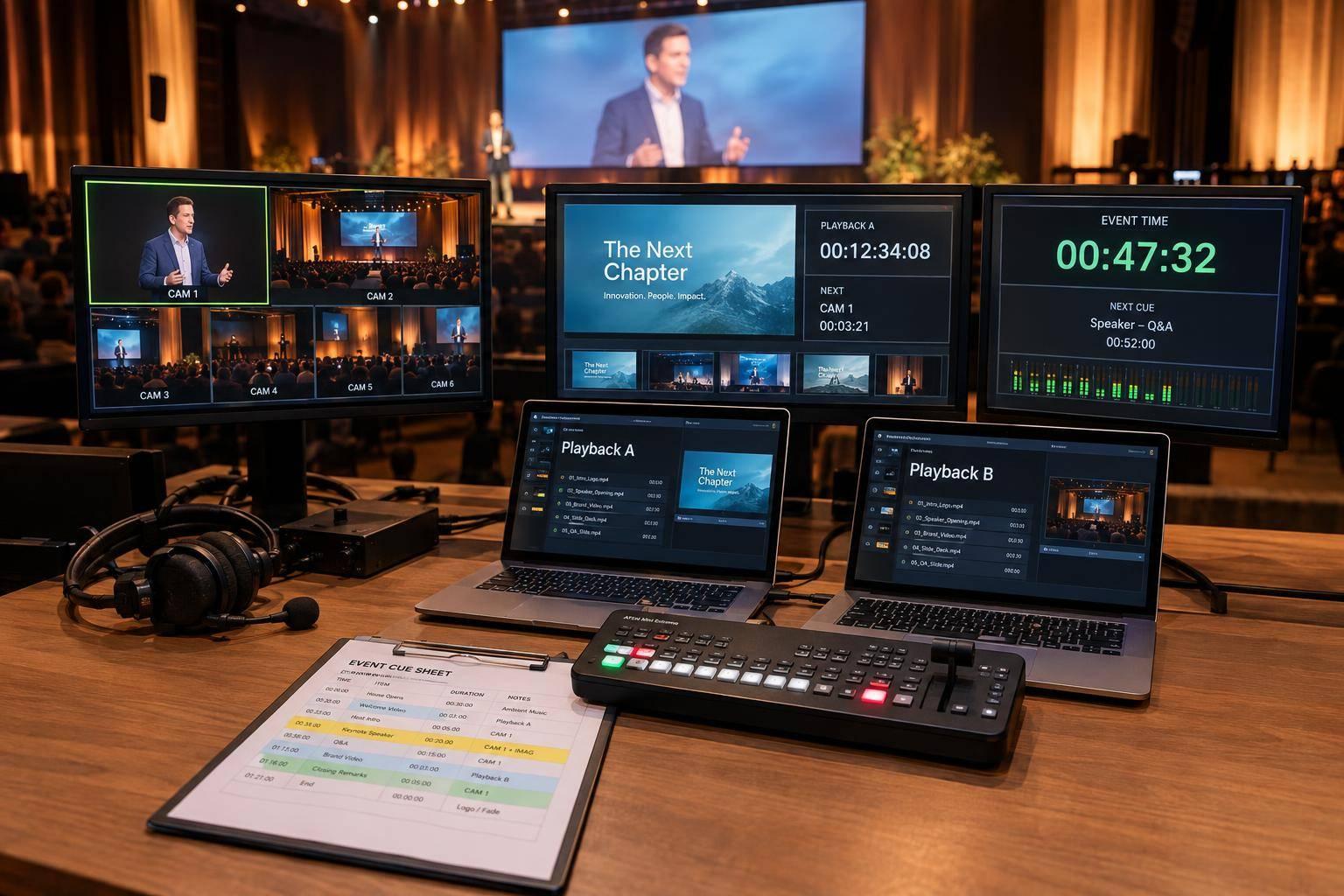
I plan event video around three questions: What’s on screen, what starts next, and what happens if it fails? Before showtime, I confirm the camera-to-screen path, test approved clips on the show equipment, and rehearse each handoff.
Here’s how I break it down:
- IMAG: Put live camera views on venue screens so people can see the presenter.
- Playback and roll-ins: Set file specs, approve versions, and define each clip’s start, audio, ending, and return source.
- Screens and sound: Match camera coverage, display formats, and audio routing. Even 59.94 versus 60 fps needs a clear decision.
- Rehearsal and backup: Assign cue owners, test every output, and practice switching to a backup - or skipping a clip.
- Final handoff: Give Corporate Optics and the event owner the approved files, cue sheets, test results, and recovery plan.
My rule: <u>test the whole system, not just the files</u>. A clip that plays on your laptop is not yet show-ready.
Video Production for Live Projection (IMAG)...
sbb-itb-ae35a94
Plan IMAG Equipment, Camera Coverage, and Screens
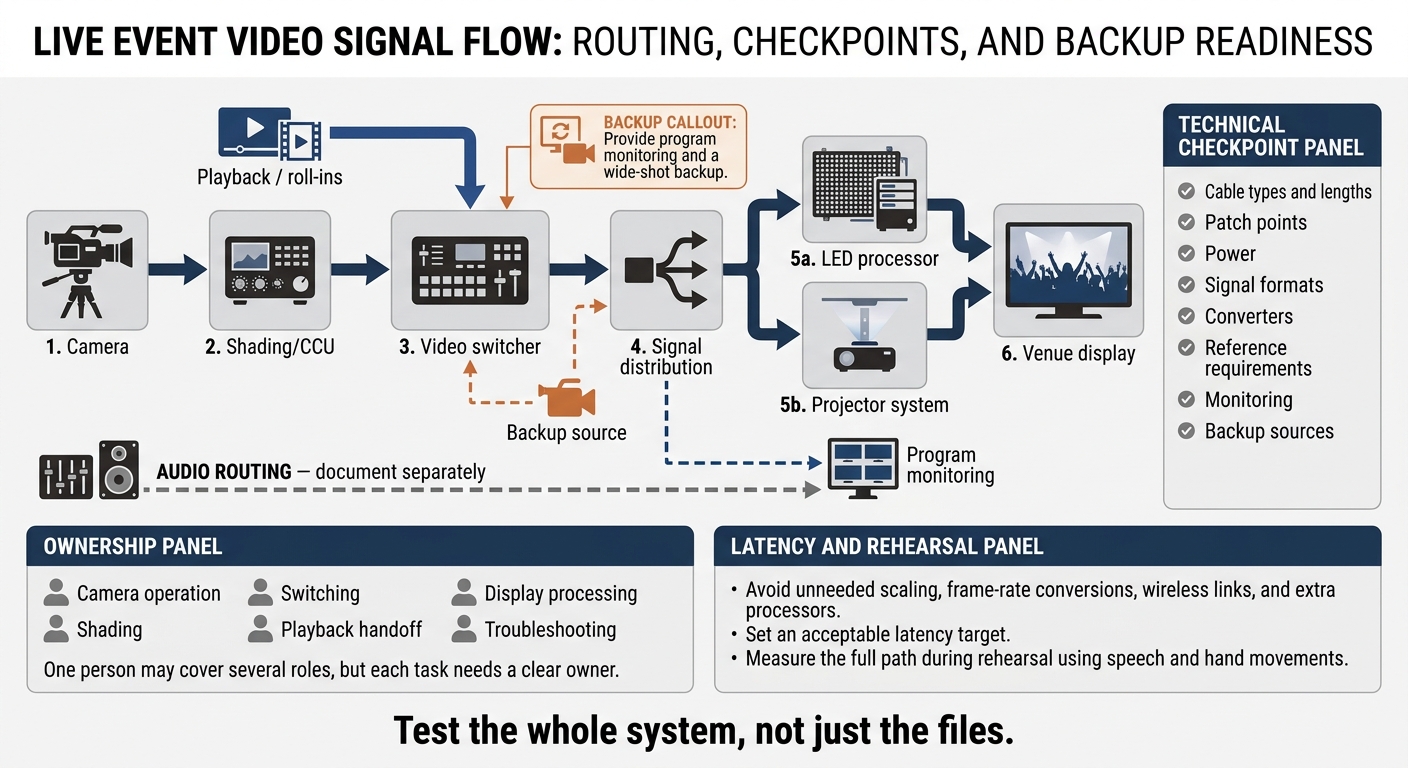
Event Video Signal Flow: Camera to Screen
Record audience distance, seating layout, obstructions, far-side sightlines, stage size, screen locations, ambient light, and available rigging or floor space. Match camera coverage to the show. A keynote may need a steady presenter close-up and a wide safety shot. A panel or product demonstration may need more angles. Put readable faces and clear views ahead of camera count. These decisions shape camera placement, screen format, and show cues.
Map the Camera-to-Screen Signal Path
Document the full path as camera → shading/CCU → video switcher → signal distribution → LED processor or projector system → venue display. Show audio and monitoring paths separately. Map both live cameras and roll-ins so each source reaches the screens correctly.
Mark cable types and lengths, patch points, power, signal formats, converters, reference requirements, monitoring, and backup sources. Assign responsibility for camera operation, shading, switching, playback handoff, display processing, and troubleshooting. On smaller shows, one person may cover several roles, but each task still needs a clear owner. Provide program monitoring and a wide-shot backup.
To limit delay, avoid unneeded scaling, frame-rate conversions, wireless links, and extra processors. Set an acceptable latency target, then measure the full path during rehearsal using speech and hand movements.
Plan Camera Positions and Presenter Shots
Start with a wide safety shot and a presenter close-up. Add PTZ or handheld coverage only when the program calls for it. Confirm lens reach from each planned position, safe operator space, power, intercom, and clear aisles.
Rehearse lectern use, stage crossings, and demonstrations under the actual show lighting. Check focus, exposure, white balance, facial shadows, lens flare, and LED moiré on the screens. If presenters move outside the primary light, extend the lit performance area or cue exposure and focus changes.
Choose Displays and Check Screen Formats
Choose displays based on ambient light, viewing distance, brightness needs, footprint, and installation access - not looks. The display must show live camera detail and keep roll-in graphics readable.
Check the nearest seat for visible LED pixels and the farthest seat for readable text and faces. A 3.9-mm LED wall typically suits viewers 13 feet or farther away, but test it with actual content. Check brightness under show lighting, too. Maximum output can strain viewers and cameras.
| Display type | Strengths | Limitations | Suitable venue conditions |
|---|---|---|---|
| LED wall | High brightness, modular construction without visible seams, wide viewing angles, and strong performance in ambient light | Higher cost; requires pixel-pitch selection, processor setup, structural support, power, and thermal planning | Ballrooms with windows, large general sessions, exhibit halls, outdoor events, or stages requiring custom shapes |
| Front projection | Flexible image size and often lower cost when the room can be darkened; useful for large images at long throw distances | Requires darkness, projector throw space, a clear beam, screen space, and control of shadows and spill | Darkened ballrooms, theaters, rooms with long throw distances, and budget-sensitive productions |
| Rear projection | Keeps projectors and light paths behind the screen, reducing front-of-house obstruction and presenter shadows | Requires backstage depth, access, and careful separation from scenic and storage areas | Theaters, stages with adequate rear clearance, and presentations where a clear front-of-house view matters |
| Smaller LCD or confidence displays | Useful for presenters, operators, overflow rooms, and close-range viewing | Limited image size and viewing angle compared with a main LED wall or projection system | Breakouts, side-stage confidence, registration areas, green rooms, and small meeting rooms |
Agree on resolution, frame rate, and aspect ratio before ordering equipment - including whether the system uses 59.94 or 60 fps. Document every scaling, cropping, letterboxing, or pillarboxing step. Custom LED layouts need exact pixel dimensions and mapped regions, not an assumed 16:9 canvas. Supply a graphics template with text-safe areas, lower-third positions, and margins that keep key content away from edges, masks, and cropped areas.
Lock the display plan before defining playback files and roll-in specs.
Prepare Playback Files and Roll-Ins
Once resolution, aspect ratio, and screen format are locked, get the playback spec before exporting any edit.
Set Playback File Specifications
Request a written delivery spec from the playback team that matches the live show’s signal path. It should cover file type, codec and encoding profile, pixel dimensions, aspect ratio, scan type, frame rate, color space, bitrate, transparency requirements, and file-size limits. For audio, confirm format, sample rate, bit depth, channel count and assignment, loudness target, and peak limits. Include caption file requirements, too. 1920 × 1080 and 48 kHz are common reference settings, but the confirmed playback system determines the export settings.
Define the exact start and end frames, opening image, handles, cue trigger, fade-in and fade-out behavior, and end-card hold time. Confirm whether the clip stops, loops, or returns to a still frame. Keep operator-only countdowns and technical details off audience-facing screens. Match caption timing to the master’s frame rate and timecode, then check captions during playback.
Approve Files and Plan Each Roll-In
Name files by event, segment, language, destination, version, and approval status. Avoid labels that leave operators guessing which version to use. Assign a content owner to manage brand, legal, speaker, and sponsor approval, plus a technical owner to approve playback. Set a content-lock deadline - 48 hours before doors open is one planning option - and require approval and retesting for late changes. Copy approved files to primary playback, backup playback, and a labeled backup drive.
Treat each roll-in as a timed source, not just a file. Record its cue owner, trigger, playback channel, destinations, duration, audio action, transition, return source, and failure action. Before show day, test every approved file on the playback system and display chain. Check for smooth playback, correct captions and audio mapping, sync, and the intended final frame. Log the tested version and result.
| Roll-in type | Purpose | Duration - illustrative planning range | Screen treatment | Audio needs | Cueing risk |
|---|---|---|---|---|---|
| Opening video | Establish the event, theme, and energy before the first presenter | 30–120 seconds | Full-screen playback; return to IMAG or a holding slide | Replace or duck walk-in music; confirm the ending cue | High: doors, lighting, and walk-on must align |
| Speaker introduction | Introduce a keynote, executive, or award recipient | 15–60 seconds | Full screen or approved picture-in-picture; return to speaker IMAG | Finish music or voiceover before the live microphone opens | High: presenter may enter early |
| Sponsor clip | Deliver contracted brand exposure | 10–30 seconds | Full screen, sponsor-branded frame, or approved picture-in-picture | Confirm sponsor audio level and whether it should be muted | Medium: missed timing can affect delivery |
| Stinger or transition bumper | Separate agenda segments or emphasize a change | 3–10 seconds | Brief full-screen animation or overlay; return to IMAG | Short music hit or effect | High: little recovery time |
| Closing video | Recognize participants or direct attendees | 30–120 seconds | Full screen; finish on event or sponsor branding | Coordinate music and voiceover with stage lighting and house audio | Medium: house lights and audience movement may overlap |
Route Playback Video and Audio
Route playback through the switcher, and map audience screens, confidence monitors, and livestream outputs separately. Keep previews, file browsers, and operator desktops off audience outputs.
Confirm whether clip audio is embedded or delivered separately, and assign control of its level. Coordinate microphone ducking, walk-in music, stage sound, and any separate stream mix. Test playback against live microphones and walk-in music so handoffs don’t cause sudden level changes or mask the presenter.
Rehearse Source Changes and Backup Plans
Once playback specs, roll-ins, and screen routes are set, rehearse every source change before show day.
Build the Cue Sheet and Rehearse Transitions
With playback and roll-ins locked, use the cue sheet as the show’s operating script. Assign one show caller and one playback operator. Record each cue’s ID, trigger, source, destination, audio state, duration, and return cue. List local show time separately from doors-open and livestream start times. Keep cue IDs fixed - adjust timing, not labels.
Rehearse on the actual show equipment with presenters, stage management, video, audio, lighting, and the show caller. For every source change, follow the same sequence: preview, call, switch, monitor, and return. Give walk-ons, microphone changes, and lighting cues extra attention.
Run each handoff at show speed. Then practice what happens when something fails - not just when everything works.
Test Signals and Practice Failure Recovery
Before doors open, check audience screens, confidence monitors, and livestream outputs separately. Run a sync test through every output path and record delay corrections in frames or milliseconds. Check that intercoms work for recovery calls.
| Failure symptom | Check | Rehearsed recovery |
|---|---|---|
| No signal | Source power, cables, selected input, routing, display lock | Hold an available wide shot or slate, switch to the backup source, and call the recovery cue. |
| Distorted aspect ratio | Source dimensions, scaler preset, screen mapping | Select the approved output preset or switch to a correctly formatted backup. |
| Missing audio | Clip channels, playback mute, channel mapping, mixer routing, program meters | Cue the presenter or approved music bed, then switch to the backup audio path. |
| Frame-rate mismatch | File frame rate, playback output, switcher format, display settings | Switch to a pretested transcode or correctly configured backup playback system. |
| Lip-sync drift | Audio/video timing and processing delays | Switch to the known-good synchronized path. |
| Failed playback | File access, approved version, application, device output | Cue the holding slate or presenter, then switch to backup playback or skip the clip. |
Allow time to fix problems and repeat recovery drills. Interrupt the primary feed, protect the audience view, call the recovery cue, switch sources, and verify the output. Practice skipping a clip so presenters, audio, lighting, and stage teams can follow the revised timing. Give each drill an owner and a recovery-time target. Test backups while they’re connected, rather than leaving spares packed away.
Once recovery tests pass, align the final rehearsal with the event team.
Coordinate Production With Corporate Optics
Before technical rehearsal, document roles, show-calling authority, and contingency plans with the event owner. Confirm rehearsal windows with Corporate Optics, along with who approves source changes, playback assets, and fallback routing. Get final signoff so the caller and operators work from the same approved cue sheet and recovery plan.
Conclusion: Confirm the Production Handoff
Check that camera coverage, screen formats, playback files, and audio routing work together on the show system.
Then document the handoff in a single signoff checklist. Include approved assets and versions, the run of show and cue sheets, camera coverage, screen formats and signal compatibility, playback and audio, calibrated displays, intercoms and radios, and loaded graphics and show files. Also list backup computers, cables, converters, microphones, batteries, and signal routes; emergency holding content; named operators and recovery owners; and client approvals. For each item, record the test result, date, responsible person, and any unresolved issues. Keep the latest signal-flow diagram and escalation contacts with the show documents.
Send the final event packet to Corporate Optics and the event owner. Include the signed checklist and show documents, venue and room layout, event dates and show times, screen dimensions and aspect ratios, venue inputs, approved content files, submission deadlines, final file-lock date, and design and technical approval contacts. Schedule a pre-doors check, a pre-show check, and a between-session reset to catch changes made after rehearsal.
FAQs
Does my event need IMAG?
Use IMAG (image magnification) when attendees farther from the stage can’t clearly see speakers, panels, or live demonstrations. Live camera feeds displayed on venue screens give guests a better view. To decide whether you need it, consider the room size, sightlines, and any fine details attendees need to see to stay engaged.
Plan camera positions and switching cues so close-ups support your presentation slides rather than replace them.
How much rehearsal time should I budget?
Schedule a full end-to-end technical rehearsal at the venue the day before the event or the morning of show day. For standard town halls, set aside 4–7 hours, plus crew-only time beforehand to fix issues before presenters arrive. Also allow time for brief line checks before doors open.
Rehearse transitions between live cameras/IMAG and recorded playback. Test the final playback files on the actual show system - not just a separate laptop.
Which video backups should I prioritize?
Keep a tested backup playback computer ready with approved local files, fonts, and media, plus its own connection path to the display. Place backup microphones and spare batteries within operators’ reach.
For streaming or recording, use a backup encoder on a separate network path and keep local recording backups to prevent data loss. Test every backup before the event and confirm it can be activated immediately.
Related Blog Posts
- Production Teams Who Manage Conference Agenda, Staging, AV, Registration And Content
- Top Meeting Planning Companies Specializing In Staging And Live Production Include
- Experienced Event Production Companies For Presenter Teleprompter Support & Conference Production.
- How Corporate Optics Handles AV, Staging And Lighting For Las Vegas Corporate Meetings.


Streamline your workflow, achieve more

Lorem ipsum dolor sit amet, consectetur adipiscing elit. Maecenas ac velit pellentesque, feugiat justo sed, aliquet felis.



Lorem ipsum dolor sit amet, consectetur adipiscing elit. Maecenas ac velit pellentesque, feugiat justo sed, aliquet felis.