Hybrid Event Production Guide: Live Audience And Virtual Attendees Done Right.

Chief Executive Officer
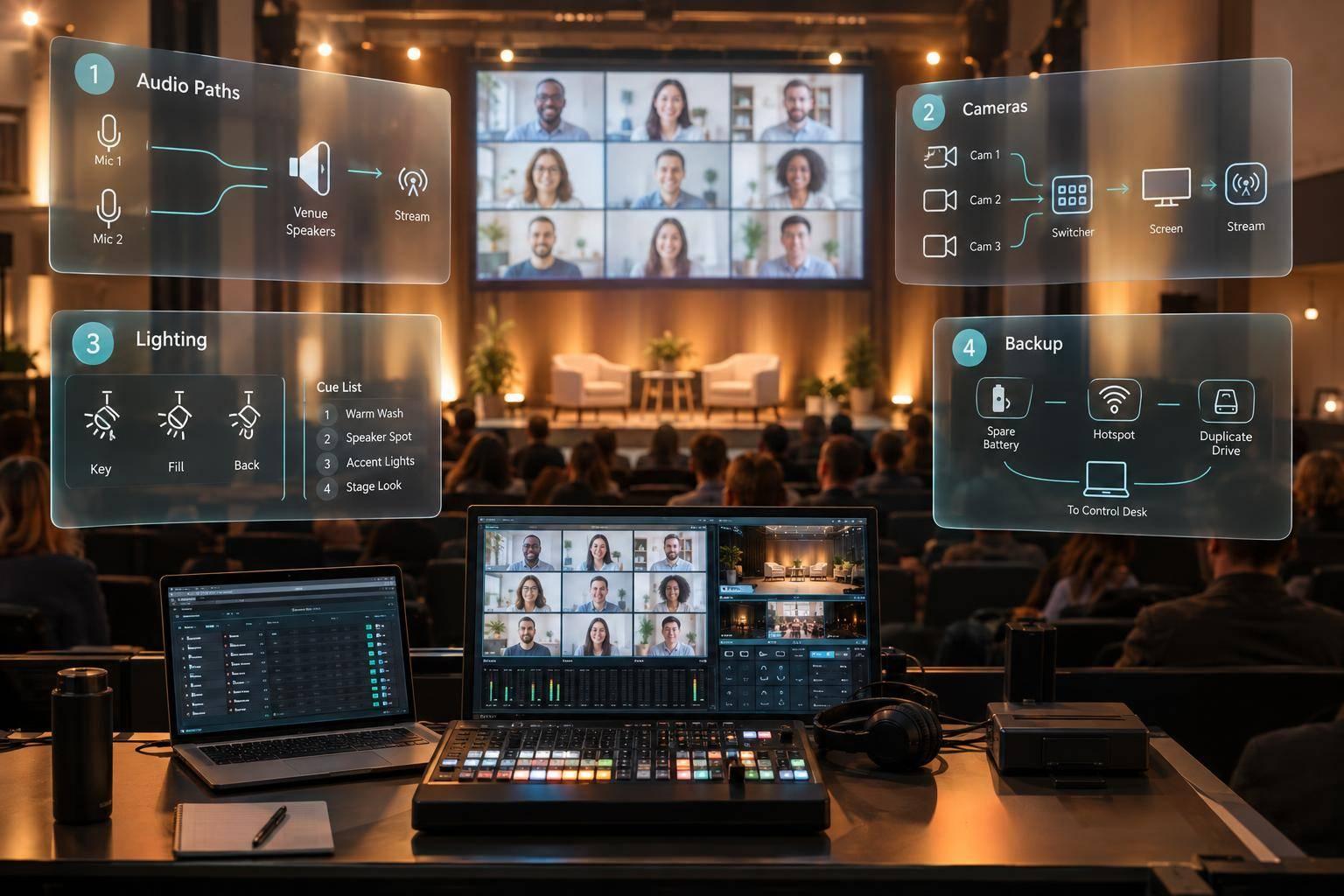
My rule for hybrid events: plan one show, then test it from both sides of the screen. Before booking, I check the venue, platform, staffing, and hybrid event budget - including 3 audio paths: room sound, broadcast sound, and a return feed that keeps remote speakers from hearing themselves.
Here’s what I put in the plan:
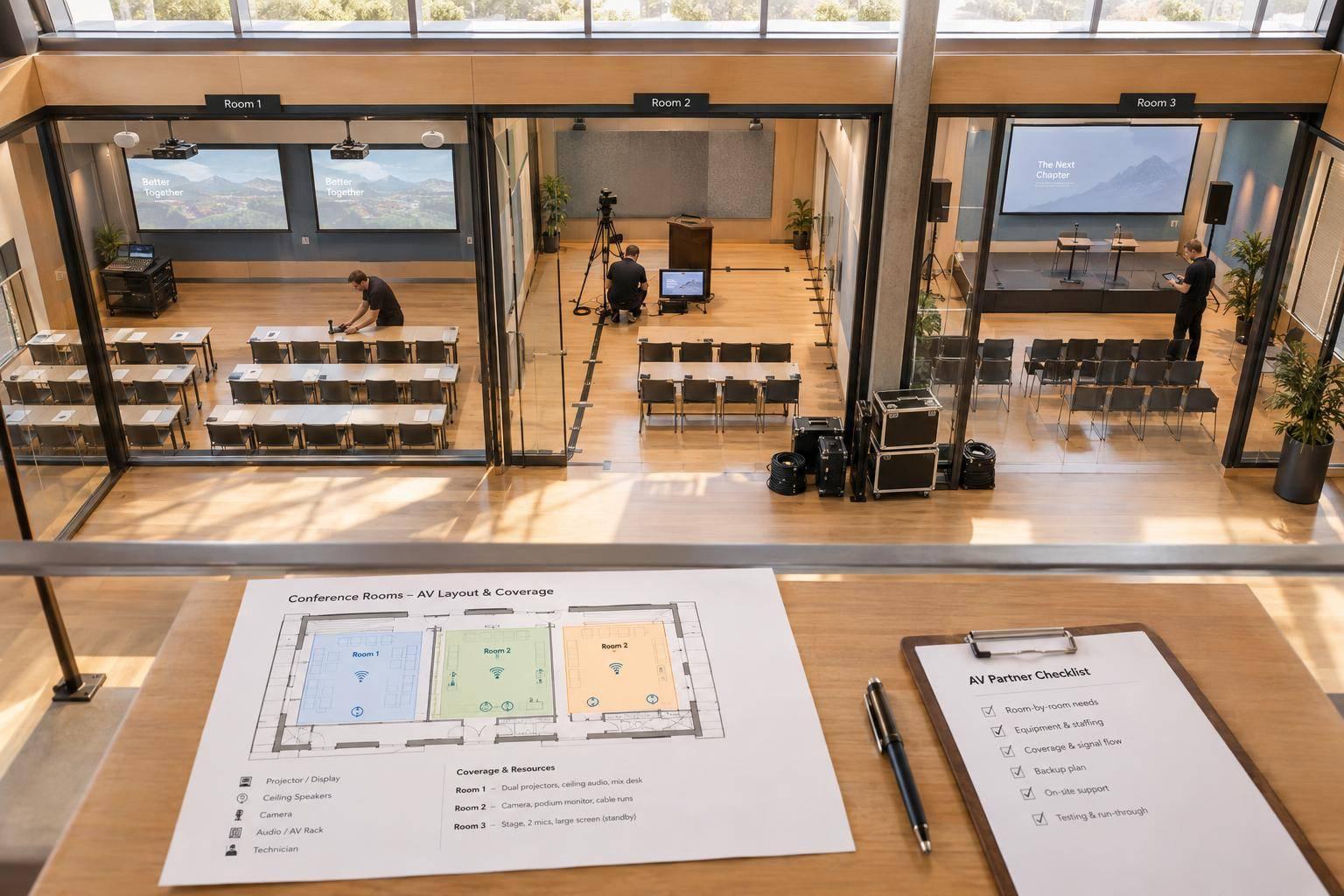
- Room and broadcast setup: Clear microphones, camera views, readable slides, captions, wired internet, and local recording.
- People and practice: Named owners, speaker checks, a full rehearsal, and tested handoffs.
- Participation: One question queue, shared polls, and clear instructions for both audiences.
- Show-day control: One schedule, live monitoring, and backup plans for connection, equipment, or platform failures.
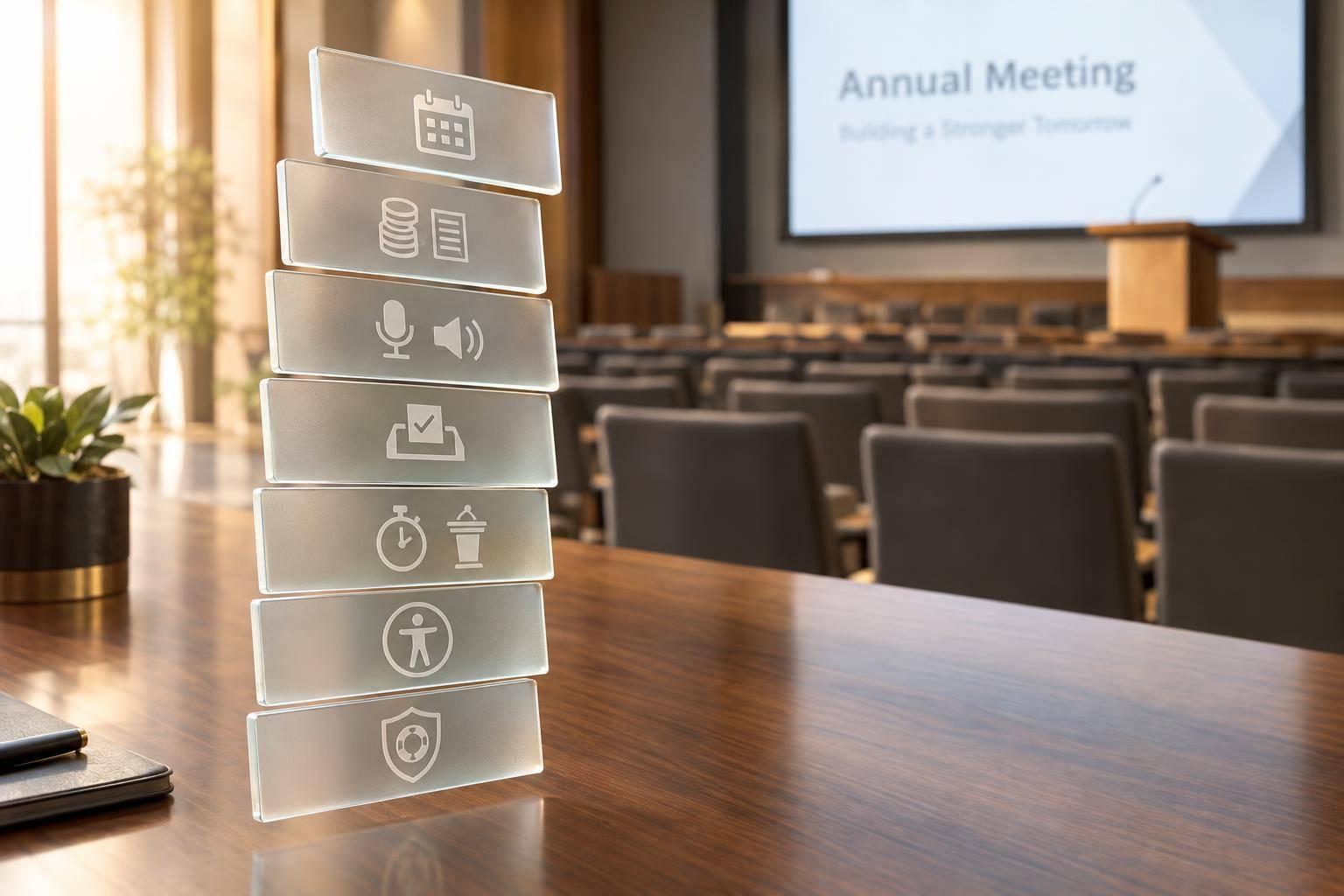
- Follow-up: Recording checks, accessible materials, and a review within 24–72 hours.
I treat <u>the online experience as part of the show</u> - not an extra camera pointed at the stage.

Hybrid Event Audio: Three Essential Signal Paths
How to set up the perfect hybrid meeting, step by step
sbb-itb-ae35a94
2. Set Up Room and Broadcast Systems
Move from planning to signal flow: get audio, cameras, playback, and streaming ready before rehearsal.
Set Up Microphones and Separate Audio Mixes
For hybrid event presentations, remote speakers, and audience Q&A, give presenters lavalier or headset microphones. Use handheld microphones for moderators and audience questions. Have staff carry the audience mic - room pickup won't make questions clear online. Label channels, test gain and mute settings, and keep labeled spares and new batteries ready.
Set up three separate audio paths: room PA, clean program, and mix-minus for remote speakers. Mix-minus lets remote speakers hear the meeting without hearing their own audio sent back to them. Route microphones, presentation audio, and remote voices directly into the program mix. Don't rely on a mic placed in front of the PA. Check room sound, stream sound, and remote returns separately, using headphones at the broadcast position.
With audio routed, connect cameras and playback to the same program feed.
Plan Cameras, Lighting, and Presentation Playback
Use at least two cameras: a locked wide shot to maintain continuity and an operated close-up for the active speaker. Add audience coverage for Q&A and demos. Match camera frame rates, white balance, and exposure under the stage lighting you'll use during the event.
Use soft front lighting that doesn't wash out screens. Provide confidence monitors for slides, timing, and remote speakers. Feed slides directly into the switcher rather than filming the projection screen. Test fonts, embedded video, playback audio, graphics, and switching cues, and leave room for captions. Use a recorded clap test to check audio-video sync across camera, playback, and remote sources.
Once the picture is set, check stream settings and recording paths.
Test Streaming, Monitoring, and Local Recording
Connect the primary encoder through wired Ethernet. Verify sustained upload capacity, firewall access, account permissions, destination privacy, and ingest settings. Match resolution, frame rate, codec, and keyframe interval to the platform's requirements. Keep the total bitrate well below measured upload capacity.
Run a sustained private test stream. Check it on both a laptop and a phone for dropped frames, unstable bitrate, and sync problems.
Assign one operator to continuously monitor program video, headphone audio, remote connections, encoder health, and platform alerts while another monitors the room. Record the switched program locally, and confirm that files are writing to storage. Where possible, record separate camera feeds and isolated microphone channels for fixes afterward. Local recording protects content, not live delivery; it doesn't replace backup connectivity or power.
3. Rehearse the Show and Plan Audience Participation
Run a Full Technical Rehearsal
Once the room and broadcast systems are ready, rehearse the entire show. Test the full event flow, not just the gear. Bring in presenters, remote speakers, moderators, venue staff, the technical crew, and the captioning provider. Run the event from start to finish through the live encoder and platform, checking the experience for both in-room and online attendees using multi-camera streaming.
Practice entrances, playback, graphics, captions, polls, Q&A, and transitions. Assign an independent remote listener to log issues with timestamps, then review the recording for audio and video quality.
Finish the rehearsal before event day, and run a final equipment and connectivity check 48 hours before doors open. Confirm that presentation files, permissions, remote access, and backup systems still work. Give every unresolved issue an owner, a deadline, and a tested fallback. Repeat critical checks on event morning.
Prepare Speakers and Rehearse Handoffs
Build a cue sheet that covers cue language, entrances, timing, owners, escalation contacts, and backups. Test remote speakers using the device and network they’ll use on event day. Confirm their presentation permissions and get a backup phone number.
Practice the stage introduction, producer cue, remote speaker’s response, and handoff back to the host. Measure the delay on the speaker’s actual connection - not just the audience stream. Rehearse pauses so nobody mistakes silence for a dropped connection, and make sure the host, remote speaker, and technician know when to move to the next cue.
Coordinate Audience Questions and Polls
With timing and handoffs set, rehearse audience participation. Assign a virtual moderator to manage chat, polls, and technical escalation while the stage moderator leads the discussion.
Use one shared question queue so both audiences remain equally visible. Track each question’s source, topic, and status; remove duplicates; and alternate contributions from the room and online. Send selected online questions privately to the stage moderator. Explain how questions are chosen, and save unanswered questions for follow-up.
For every poll, define the launch cue, response window, closing cue, and whether to display results. Test in-room access through QR codes or mobile links alongside online access. Check keyboard navigation, caption visibility, and whether the poll’s anonymity settings match what attendees are told. Allow for stream delay before closing the vote.
Give both audiences the same participation instructions, schedule changes, break updates, and access to materials. Lock these cues before event day so everyone knows what to communicate during the live show.
4. Run the Event With Checklists and Backup Plans
Keep one live control packet with the checklist, run of show, contacts, credentials, backup media, and failure plan. Place a printed copy at the control position.
Production Checklist by Phase
Give each task one accountable owner. Mark it Verified only after checking the result. Escalate immediately if a critical-path issue affects audio, streaming, recording, captions, power, or presenter playback.
Use the rehearsal notes to build a live control sheet.
| Phase | Required checks | Owner | Completion time | Status | Escalation |
|---|---|---|---|---|---|
| Pre-production | Confirm venue, platform, accessibility, staffing, and hybrid meeting planning readiness. | Technical producer and event manager | 30–14 days before | Not started | Event manager |
| Show week | Load final presentation and participation assets, speaker contacts, and backup files onto primary and spare computers. | Show caller, playback operator, and AV lead | 5–2 days before | Not started | Producer |
| Rehearsal | Run a full end-to-end rehearsal. Check critical paths, captions, polls, Q&A, remote-speaker handoffs, and fallback procedures. | Technical director and platform producer | 1–2 days before | Not started | Producer |
| Event-day line check | Test all live inputs, returns, captions, playback, and recording paths. Have a remote listener confirm program sound and picture. | Audio lead, video lead, and virtual producer | Before doors open | Not started | Technical director |
| Backup confirmation | Verify backup connectivity, encoder, microphones, audio route, camera shots, cables, and local recording. Keep replacements connected or ready to deploy. | AV lead and technical director | Before doors open and after each major change | Not started | Technical director |
| Live monitoring | Check room and stream quality, captions, audience participation, remote speakers, recording, and attendee reports. Use an audience engagement scorecard to track real-time interaction levels. Log incidents and cue the show caller before making changes. | Stream engineer and virtual producer | Throughout program | Not started | Show caller |
| Post-event | Verify recordings. Export participation data, captions, and speaker files; label versions and check access permissions before publishing. | Media manager and event data owner | Same day to 24 hours after | Not started | Producer |
Use the same four statuses throughout: Not started, In progress, Complete, Verified. Before the virtual room opens, the producer, technical director, platform lead, and client lead must sign off on the primary stream, backup route, captions, recording, and communication channels. Also decide who can authorize stream switches, content substitutions, schedule changes, and attendee announcements before the show starts.
Sample Morning Run of Show
This is the show-day running order. Keep owners and timing consistent so the room and stream follow the same clock.
Hypothetical schedule - all times Eastern Time (ET). Record timing changes in this same document so stage, streaming, and captioning teams follow one clock.
Time (ET) On-site program Virtual production cues Lead owner 8:00 a.m. Crew call; power up production systems. Open the private production session and remote-speaker standby room. Technical director 8:15 a.m. Complete the final line check. Remote listener signs off on program sound and picture. Audio lead and virtual producer 8:30 a.m. Assemble presenters in speaking order. Bring remote speakers into standby. Stage manager 8:45 a.m. Final presenter briefing and standby call. Captioner, moderator, and platform support move to standby. Show caller 9:00 a.m. Doors open; welcome slide and background audio. Open attendee access with welcome information, captions, and the help channel. Audience manager and virtual producer 9:20 a.m. Seat presenters in opening positions. Take pre-show slate; start program and backup recording. Stream engineer 9:30 a.m. Opening remarks. Take wide shot, then opening close-up; carry captions into the program. Show caller and video director 9:45 a.m. Keynote begins. Take keynote camera and slides. Video director and stream engineer 10:30 a.m. Break. Play approved break content, display return time, and keep captions available. Playback operator 10:45 a.m. Panel begins. Open panel microphones, take speaker identifiers, and bring in the remote panelist. Audio lead and virtual producer 11:30 a.m. Shared audience questions. Alternate room and online questions; launch the shared poll. Q&A moderator 12:10 p.m. Final discussion and audience takeaways. Display poll results or closing graphic; collect final online questions. Virtual producer 12:30 p.m. Closing remarks; release the room. Stop recording after the closing cue; leave support instructions visible as needed. Show caller and stream engineer
One-Page Failure Response Plan
When something fails, follow the same chain of command. The actions below prioritize fast fixes that protect both audiences without stopping the program.
Keep the room program and local recording running whenever possible. The technical director authorizes technical switches; the show caller controls content and timing. Give attendee updates to a separate communications owner. Test cellular backup at the venue - not just on the same carrier somewhere else - and keep replacements connected or ready to deploy.
| Failure | Immediate action | Owner | Attendee message |
|---|---|---|---|
| Primary internet lost | Switch to tested cellular or bonded connectivity; maintain local recording. | Stream engineer | The online stream is reconnecting while the in-room program continues. |
| Encoder fails | Activate the preconfigured secondary encoder path. | Stream engineer | Online video is being restored. |
| Microphone fails | Cue the speaker to a tested spare. Mute the failed channel and service it after the segment. | Audio lead and stage manager | Please pause while we switch microphones. |
| Stream audio lost | Switch to the backup stream bus or console output. Keep the room PA on its independent route where possible. | Audio lead | Online audio is being restored while the in-room program continues. |
| Camera feed fails | Cut to an alternate camera or presentation feed; troubleshoot off-air. | Video director | We’re switching to another camera while we restore the feed. |
| Playback computer fails | Switch to the spare computer with verified files. Cue a verbal explanation or holding slide. | Playback operator | The presenter will continue while the presentation feed is restored. |
| Remote speaker disconnects | Notify the show caller, reconnect the speaker through technical support, and cue an approved discussion point, poll, or recording. | Virtual producer | We’ll move to the next discussion point while our remote speaker reconnects. |
| Platform disrupted | Continue the room agenda and local recording. Activate tested backup access if available, and send email, text, or website updates. | Virtual producer | Check your email for updated online access instructions. |
| Captions fail | Contact the captioning provider. Display available prepared text and provide accessibility support instructions. | Accessibility lead and virtual producer | Use the support channel for assistance while captions are restored. |
Log each incident’s time, action, and recovery. Afterward, check local and cloud recordings and captions, export registration and participation data, and document the incident while the details are still clear.
5. Conclusion: Review Results and Plan Improvements
Hold a production debrief within 24–72 hours, using the live control packet, run of show, and incident log. Compare results with the original goals for in-room attendance, virtual attendance, satisfaction, drop-off, and participation. Review each audience separately: strong in-room results can hide weak virtual engagement.
Check what happened on site and online against those goals. Review planned versus actual timing, audio issues, unanswered Q&A, poll results, and recording quality. Assess room audio and stream audio separately. Use this evidence to judge whether staffing, speaker rehearsals, handoffs, and tested backups worked as intended.
Before closing the project, confirm that final recordings, corrected captions, slides, reports, and follow-up materials are complete and accessible to their intended audience. Assign each major issue one fix, one owner, and one deadline. Schedule a later review of replays, leads, and revenue when those results are available, then use the findings to update the next event brief, staffing plan, and backup checklist.
FAQs
How should I budget for a hybrid event?
Prioritize reliable AV: 2–3 high-quality cameras, a video switcher, an audio mixer, and dedicated stream audio. Budget for hardwired internet and a backup connection. Run a 30-minute upload test to confirm that upload capacity exceeds the total stream bitrate.
Budget for staff to support a full technical rehearsal, which typically takes 4–7 hours for standard town halls. Set aside 5%–10% for contingencies early, with a total contingency budget of 10%–15%.
What is the minimum crew I need?
Assign a professional technical director to manage transitions, a production manager to oversee technical scope, and a stage manager to handle cues. Staff the event with dedicated audio, video, lighting, and streaming technicians, plus camera operators.
Add a remote moderator to manage the shared Q&A queue and support staff to monitor both in-person and virtual audiences.
Keep streaming duties separate from camera operations to maintain consistent quality for virtual attendees.
How do I choose a hybrid event platform?
Choose a hybrid event platform that matches your event size and audience engagement goals. Check its live polls, Q&A, chat, and breakout rooms. Make sure it supports your required resolution and bitrate and works with your production hardware and streaming setup.
Test the platform at least 48 hours before the event, using the equipment and internet connection you’ll use on event day to check stability.
Related Blog Posts
- What are common mistakes in corporate AV production?
- Meeting Planners To Use For Hybrid Events With Complex Tech Integration
- 3 Production Companies To Reach Out To Today Who Handle Av, Staging, Lighting, Show Calling, Technical Direction, Rehearsals, And Hybrid/Streaming.
- Hybrid Event Production Explained: How To Serve Both The In-Room And Remote Audience.


Streamline your workflow, achieve more

Lorem ipsum dolor sit amet, consectetur adipiscing elit. Maecenas ac velit pellentesque, feugiat justo sed, aliquet felis.



Lorem ipsum dolor sit amet, consectetur adipiscing elit. Maecenas ac velit pellentesque, feugiat justo sed, aliquet felis.