Hybrid Event Production Explained: How To Serve Both The In-Room And Remote Audience.

Chief Executive Officer
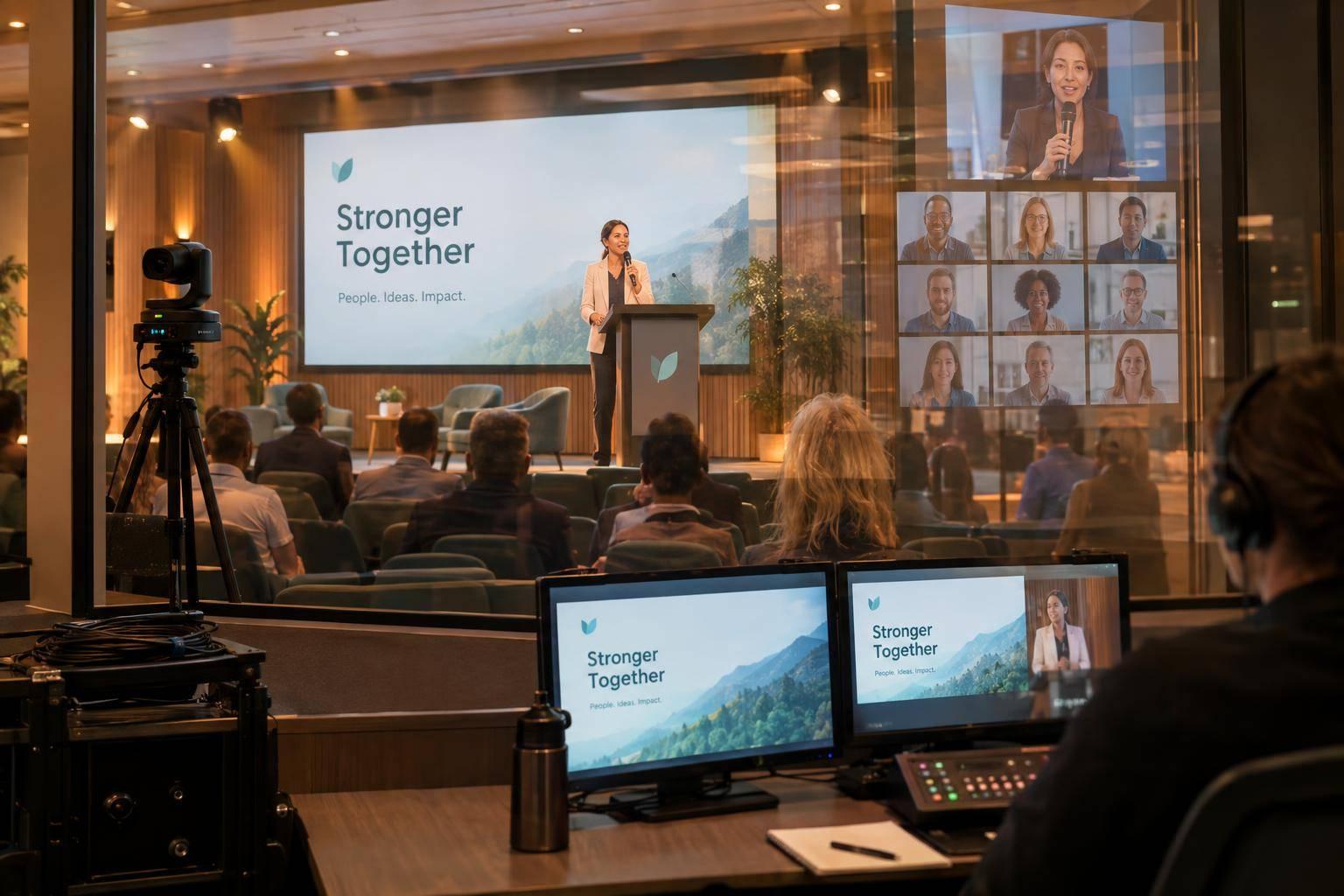
I plan hybrid events around one goal: both audiences must be able to see, hear, and participate. That means separate room and stream audio, readable slides, shared Q&A, and a tested backup connection - not just a camera pointed at the stage.
Here’s the checklist I use:
- Follow hybrid meeting planning best practices: Assign crew roles, explain participation options, and arrange captions and support.
- Check multi-camera streaming setups: Test microphones, camera shots, lighting, slides, and remote speakers.
- Rehearse before show day: Run a full technical rehearsal 48–72 hours before the event, including connection failures and speaker handoffs.
- Keep people involved: Use one question queue and shared polls, with interaction every 10–15 minutes during longer sessions.
- Monitor and follow through: Watch the room and stream separately, check recordings and consent, and give every unresolved issue an owner.
My final check is simple: <u>test what attendees receive - not just what the crew sends.</u>

Hybrid Event Production: A Five-Stage Checklist
Hybrid Events: 3 Key Audio/Visual (A/V) Needs for Beginners
sbb-itb-ae35a94
2. Set Up Audio, Cameras, Lighting, and Slides
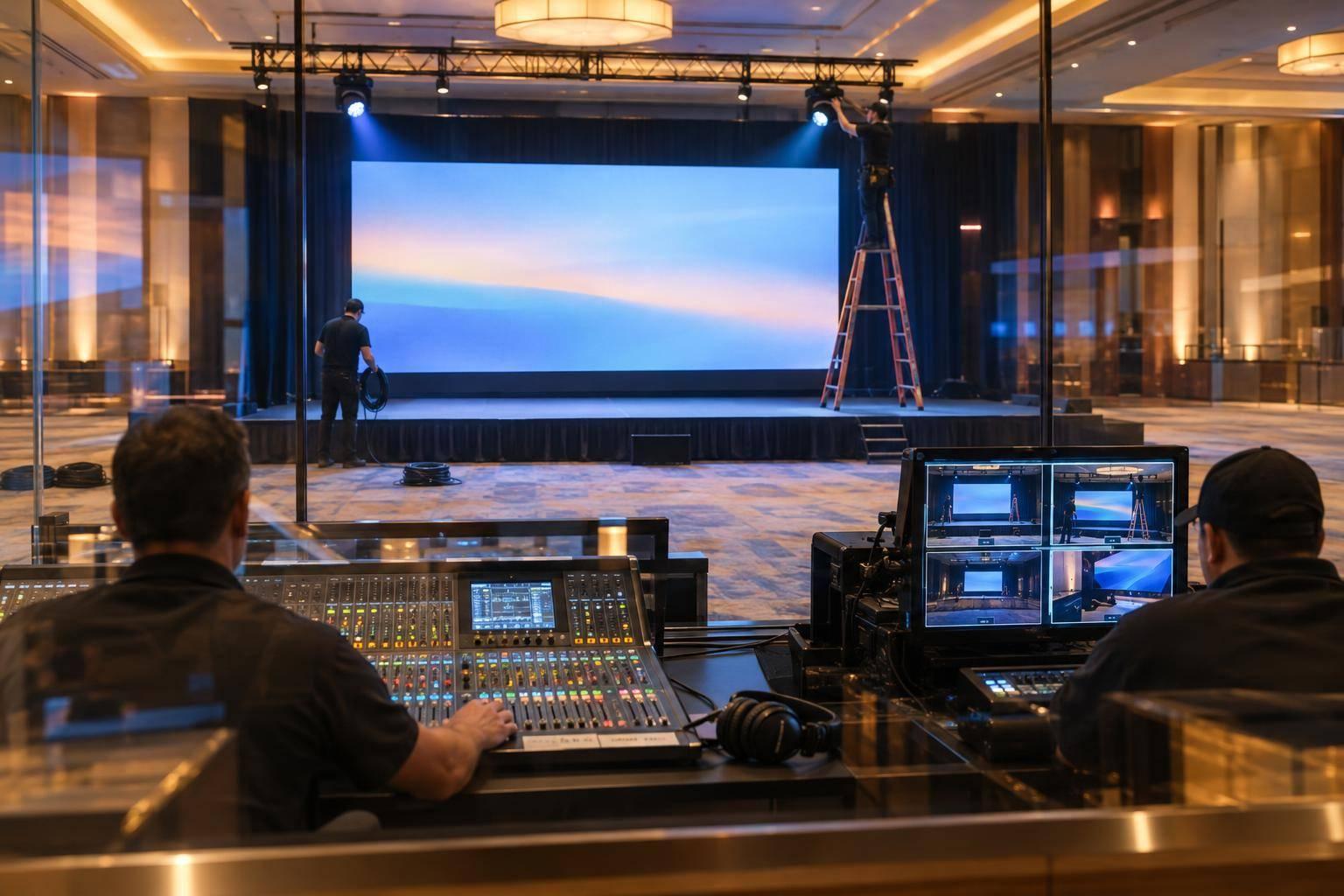
With audience roles defined, turn their needs into a technical plan for sound, camera coverage, lighting, and slides.
Separate Room Audio From Broadcast Audio
Route every audio source through the console, but keep the room PA and stream mix separate. Adjust the stream mix for clear speech and monitor it with headphones.
Give presenters lavalier or headset microphones and panelists handheld or gooseneck microphones. Use a dedicated handheld microphone for every in-person audience question, and keep a charged spare at the console.
Send remote speakers a mix-minus feed so they hear everyone except themselves. Ask them to use headphones or an echo-canceling headset when possible, mute unused microphones, and avoid joining from multiple devices with open audio in the same room. Check that they can hear the host clearly without hearing their own voice played back.
With the audio clear, plan how the show will look in the room and on the stream.
Plan Camera Shots and Stage Lighting
Plan camera coverage and lighting for the stream first, then check that the room still looks comfortable. Write a shot list and camera plot before the event.
With two cameras, keep one on a fixed wide shot and use the other for tighter shots of the active presenter. For panels, include close-ups. Add an audience or aisle camera only if it can film questions without blocking sightlines.
Walk through each camera position and check for lecterns, confidence monitors, audience heads, and projection beams that could interfere with the shot. Light faces from the front with soft fill, check for glare on glasses, and set exposure and white balance using the camera feed. Keep bright fixtures out of attendees’ eyes.
Make Slides Readable and Prepare Speakers
Send slides and videos directly to the stream switcher or encoder rather than filming the projection screen. Check charts, labels, and text on a laptop-sized screen, and keep them clear of captions and lower thirds.
Rehearse animations, video sound, demonstrations, slide changes, and transitions. Have static screenshots ready in case media fails.
Brief speakers on microphone placement, camera framing, confidence monitors, clickers, and moderator cues. For remote contributors, test headphones, microphone level, face lighting, camera height, screen sharing, and connectivity. Confirm that backup presentation files are ready, then ask contributors to close unnecessary apps and disable notifications before joining.
Once the visual plan is set, rehearse the full signal path and backup plan.
3. Test the Stream and Rehearse Backup Plans
Test Internet and the Complete Signal Path
Once audio, cameras, lighting, and slides are ready, test the full delivery chain before show day. Use a dedicated wired connection at the encoder location. Run a 30-minute sustained upload test under production load, with headroom above the total stream bitrate. Set up and test an independent backup connection. Confirm firewall permissions and event-day support with venue IT.
Run a private stream that includes audio, video, graphics, captions, encoding, playback, and recording. Use a separate device and network to check what remote attendees experience: speech, media audio, lip sync, slide readability, transitions, and delay. A clean program monitor alone won’t tell you whether viewers can see and hear everything correctly.
Rehearse the Show and Complete Pre-Show Checks
Rehearse with the final room layout, presentation files, speakers, moderator, and caption workflow. Practice audience questions, remote-speaker handoffs, polls, breaks, and returns. Have test viewers join on a laptop, phone, and tablet, while an in-room observer checks that remote contributions reach the room. Schedule the full technical rehearsal 48–72 hours before the event so there’s time to fix problems.
Use a short pre-show checklist covering power, batteries, cables, mic levels, camera framing, lighting, internet, encoder settings, attendee access, captions, recording storage, backup media, and crew communications. Test local and platform recordings separately. Start the stream early enough to check access, sound, slides, captions, and delay from an independent device before the program begins.
Prepare for Connection and Equipment Failures
Once the rehearsal runs as planned, test what happens when something fails. Assign an owner and a backup person for each failure type: internet, encoder or switching, microphones, cameras, and disconnected speakers. Practice recovery steps and stream outages - not just equipment setup.
Keep spare microphones, local backup files, prerecorded material, speaker contacts, and approved holding messages ready. Decide what both audiences will see and hear during breaks, room-only activities, and interruptions. If the stream fails, send updates through a separate attendee channel. A holding slide can’t reach viewers without a live stream. Before resuming, use the remote return monitor to confirm that sound and picture are back.
4. Manage Participation and Monitor Both Audiences
Once the show goes live, move from setup to active moderation and monitoring.
Coordinate Questions and Audience Activities
Use one shared question queue and a remote moderator. Start by explaining where to submit questions, whether names will appear, how questions get priority, and how to request technical help. Use a microphone runner or floor mic for questions from the room, then add them to the same queue.
The moderator checks submissions for duplicates, relevance, urgency, and accessibility needs. The host alternates between in-room and remote questions and repeats each one before the speaker answers. Allow for stream delay before moving to the next question.
Give both audiences the same polls, with an on-screen QR code and an online link. Display the combined results in the room and on the stream. For longer sessions, schedule an interaction every 10–15 minutes. The moderator tracks responses while the host keeps the activity on schedule.
Monitor the Show and Keep the Crew Connected
Keep the technical director, stage manager, host, remote moderator, and support staff on a private production channel, separate from audience chat. Assign one observer to check room audio clarity and another to watch the stream for sync, slides, framing, captions, stability, and delay. Let the moderator flag urgent viewer issues and unanswered submissions.
Use a shared run-of-show clock so the crew follows the same timeline. Ask speakers to acknowledge remote attendees. As schedule changes are announced in the room, the moderator should post them online. During breaks, show remote viewers a return time or countdown so they don’t have to guess what’s happening off-camera.
Check Recordings and Arrange Post-Event Access
After each session, check the start, end, transitions, Q&A, poll results, media, and incident timestamps. Before release, confirm that speech is clear, presentation media is readable, audio and video are synchronized, and captions are ready.
Release recordings and supporting files only under the agreed consent rules for names, faces, questions, chat, and poll responses. Follow the agreed access rules and use the agreed distribution channel. Review participation levels, unanswered questions, support requests, stream interruptions, and recurring accessibility problems. Assign specific fixes for the next event.
5. Conclusion: Check Readiness for Both Audiences
Before doors open, get final sign-off for both audiences. Each lead should approve their area: production, audio, camera, lighting, slides, streaming, moderation, support, and recording.
Test the stream from outside the venue’s network. Confirm that backup systems are ready and that the person responsible for switching over is prepared.
Give every unresolved issue an owner, a deadline, a verification check, and a fallback. The show caller or technical producer should review these issues at the final production meeting and again before doors open. Keep the checklist open until each owner confirms the fix.
The event is ready when every lead confirms that in-room and remote attendees can see, hear, and participate without workarounds.
FAQs
What hybrid event equipment do I need on a tight budget?
Start with 2–3 high-quality cameras, a video switcher, and an audio mixer. Give the livestream its own clean audio mix rather than using the room PA feed. Use LED panels to keep speakers clearly visible without excess heat.
Choose hardwired internet over Wi-Fi, with at least 5 Mbps upload speed for HD streaming. Use reliable cabling, such as SDI for longer distances, and keep a backup connection ready - a mobile hotspot, for example.
How much upload bandwidth does my hybrid event need?
Use a wired internet connection with at least 25 Mbps for both upload and download. Standard venue Wi-Fi often falls short for professional streaming. Give your encoder and multi-camera feeds dedicated, stable bandwidth.
Always have a backup, such as bonded cellular or dual internet paths, so the stream can continue if your primary connection fails. During rehearsals, test upload capacity to make sure it meets your event’s scale and quality requirements.
How can I measure engagement across both audiences?
Use tools suited to each audience, then bring the data together. For virtual attendees, track moderated Q&A, live polls, chat, heatmaps, watch time, peak viewer counts, and drop-off points. For in-person attendees, collect feedback through event apps, response systems, and post-event surveys.
Combine both sets of analytics to see engagement patterns across your audience, measure ROI, and adjust your content plan for future events.
Related Blog Posts
- What are common mistakes in corporate AV production?
- Audio-Visual Companies Best Known For Leadership Communications In Hybrid Event Production
- AV Production Partners With End-To-End AV Design, Stage/Scenery, Rigging, Lighting, Sound, Video, Hybrid/Virtual Integration, And On-Site Staffing.
- 3 Production Companies To Reach Out To Today Who Handle Av, Staging, Lighting, Show Calling, Technical Direction, Rehearsals, And Hybrid/Streaming.


Streamline your workflow, achieve more

Lorem ipsum dolor sit amet, consectetur adipiscing elit. Maecenas ac velit pellentesque, feugiat justo sed, aliquet felis.



Lorem ipsum dolor sit amet, consectetur adipiscing elit. Maecenas ac velit pellentesque, feugiat justo sed, aliquet felis.