Confidence Monitors vs. Teleprompters: What Executive Presenters Need On Stage

Chief Executive Officer
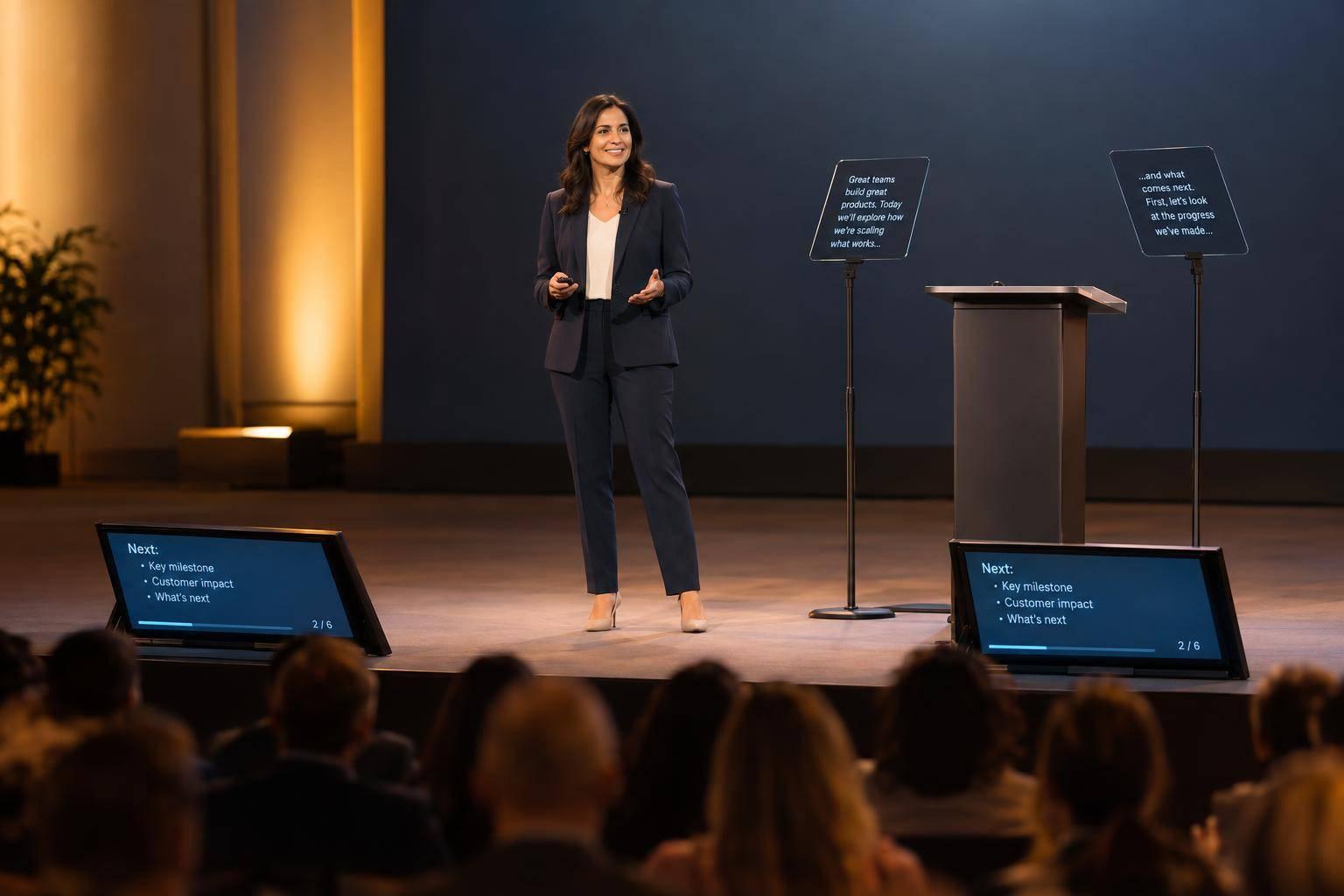
I choose a confidence monitor for slide cues and a teleprompter for exact wording - not based on the speaker’s title or audience size. If your program mixes scripted remarks with discussion, you may need both.
Here’s how I match the setup to the talk:
- Scripted keynote: A teleprompter keeps approved wording in view, with an operator following the speaker’s pace.
- Slide-led presentation: A confidence monitor shows slides, short notes, previews, and timing cues.
- Executive panel: Confidence monitors give panelists shared questions, names, handoff cues, and countdowns.
Quick Comparison
| What I compare | Confidence monitor | Teleprompter |
|---|---|---|
| Content | Slides, notes, and timers | Scrolling script |
| Delivery | Brief glances; wording can vary | Exact or near-exact wording |
| Movement | Works while the display stays visible | Limited to the readable viewing area |
| Eye contact | Short checks toward a low screen | Reading near the audience sightline |
| Staffing | Simple playback may run unattended | An operator follows the speaker’s pace |
Before showtime, I check <u>readability from every speaking position</u>, viewing distances in feet, screen angles, and lighting. Then I rehearse with approved files and the actual equipment, assign cue owners, and agree on backups. The goal: support executive speakers without making the screen the focus.

Confidence Monitor vs. Teleprompter: Choose Your Stage Setup
A/V Tips for Event Planners: 3 Smart Ways to Display Speaker Notes
sbb-itb-ae35a94
Confidence Monitors vs. Teleprompters: How They Work
For executives, the choice comes down to audience eye contact versus exact wording. Each system supports eye contact, pacing, and cue control differently.
| Criterion | Confidence monitor | Teleprompter |
|---|---|---|
| Primary purpose | Brief glances for orientation, pacing, and transitions | Frequent reading near the audience sightline for exact or near-exact wording |
| Movement limits | Speaker can move as long as the display stays visible | Speaker must stay within the readable viewing area |
| Staffing needs | Simple slide playback can run unattended; complex setups work better with operator support | An operator adjusts scroll speed to match the speaker’s pace |
Confidence Monitors: Slides, Notes, and Timers
A confidence monitor gives speakers a cue source they can check at a glance during slide-led delivery. Positioned low at the front of the stage, it displays slides, notes, next-slide previews, and timing cues. Angle it upward so the speaker can check it without turning toward the audience screen. Use brief glances to cue slide changes, handoffs, and time checks while maintaining audience eye contact.
Check whether the monitor mirrors the audience feed or shows a separate presenter view. A mirrored feed shows only what attendees see. A separate presenter view can include notes, a next-slide preview, and a countdown hidden from the audience, but it requires separate video feeds. Keep notes short and the layout uncluttered so cues are easy to spot.
Teleprompters: Scrolling Scripts
A teleprompter uses transparent glass at eye level to reflect a scrolling script. The system flips the text so it reads correctly in reflection; the audience sees the glass, not the script. An operator adjusts the scroll speed to follow the speaker’s pace, pauses, emphasis, and ad-libs. The text follows the speaker - not the other way around.
Use large, high-contrast text, short lines, and clear paragraph breaks. Start with white text on black, split paragraphs into two- or three-sentence blocks, and add pause or pronunciation cues. Test readability from the speaking position. Then rehearse pauses, skipped passages, and ad-libs with the operator.
Work from one approved script version labeled with its revision date, and send all edits through one owner. Before going live, check any changed line breaks, cue placement, and scroll timing. Keep a clearly labeled backup and agree on a fallback, such as printed talking points.
Which System Fits Each Presentation Format?
Now that the mechanics are clear, match the tool to your presentation format.
Scripted Keynotes: Exact Wording or Flexible Delivery
Choose a teleprompter when every word must match approved copy. That includes legal, financial, regulatory, investor, or formal announcements. Use a confidence monitor for conversational keynotes built around slides or outlines, especially when the executive plans to move across the stage.
| Factor | Teleprompter | Confidence monitor |
|---|---|---|
| Script accuracy | Best for exact, approved wording and reducing omissions | Provides key points while leaving the wording to the presenter |
| Slide awareness | May need a separate slide monitor or operator cues | Shows the current slide and can display the next cue |
A teleprompter doesn’t guarantee natural eye contact. Practice conversational delivery and look across the audience between phrases. Rehearse the script at presentation speed, then do one run with a skipped line to test recovery.
When the deck drives the talk, slide cues take priority over scripted wording.
Slide-Led Presentations: Slides and Script Cues
Use a confidence monitor for slide-led delivery. Add a teleprompter only when the presenter must read the script word for word.
| Factor | Confidence monitor | Teleprompter |
|---|---|---|
| Slide synchronization | Keeps the presenter aligned with the deck | Needs separate slide cues or another monitor |
| Freedom to elaborate | High; the presenter can explain, skip, reorder, or expand on points | Lower with a word-for-word script, though preparation allows departures |
| Reading-ahead risk | Limited with short notes; too much text can lead to downward glances and missed audience reactions | Higher if the presenter reads ahead or the script and slides drift apart |
| Audience connection | Supports movement and direct engagement when glances stay brief | Keeps the presenter facing forward, but mechanical reading may weaken the connection |
| Interactive content | Works well for demonstrations, questions, videos, polls, and live changes | Needs cueing when content changes unpredictably |
Use matching cue numbers for slides, demos, and media. Pause the script when the presenter goes off-book. If a demonstration runs long, hold the slide and pause the script rather than letting the presenter read ahead.
For discussions, shared timing matters more than exact wording.
Executive Panels: Prompts and Timing
Panels need shared cues that speakers can read at a glance - not a single script to follow. Use confidence monitors for prompts, names, questions, transitions, and time cues. These help the moderator guide the discussion and keep handoffs quick.
Position monitors so every panelist can glance at them without turning away from the conversation. Save teleprompters for required announcements that must be read word for word.
| Factor | Confidence monitor | Teleprompter |
|---|---|---|
| Conversational flexibility | Supports spontaneous answers and topic changes | Limited when speakers interrupt or leave the prepared script |
| Shared visibility | Shows moderator prompts, speaker names, and countdowns to the panel | Usually designed for one speaker and one viewing direction |
| Seating limits | Must account for seated speakers’ viewing angles and distances | Practical only when aligned with a speaker’s sightline |
| Timing cues | Shows shared countdowns or moderator signals | Can include timing in the script but is less convenient for shared panel timing |
Stage Setup: Placement, Readability, and Staffing
Screen Placement and Audience Eye Contact
Once you’ve chosen the support system, placement determines whether the speaker can use it while staying connected with the audience. Good placement supports eye contact, pacing, and recovery when a speaker loses a cue.
Test every speaking mark, lectern position, and panel seat. Record viewing distances in feet. Check stage height, screen angle, presenter height, and anything that could block the view, including cameras, décor, lecterns, and lighting fixtures. Check audience sightlines, too.
Place confidence monitors low and downstage, angled upward. Choose a monitor size that fits the stage depth and viewing distance. Set teleprompter glass near each speaker’s natural eye line, then rehearse glances and movement from every speaking mark. Speakers should be able to read without repeated head turns.
Text Readability and On-Stage Rehearsal
With placement set, test the setup under show conditions. Use approved content at the actual viewing distance and under show lighting. Check glare, reflections, and timer visibility.
Rehearse with the actual microphones, clickers, cameras, lectern, and operators. Check slide transitions, video cues, and sightlines for seated panelists. Run a read-through at the pace of the live program so the operator can match pauses, emphasis, and script changes.
Once the layout works, lock the workflow to keep cues stable during the program.
Operator Roles, Approved Files, and Backup Plans
Assign a named owner for each slide feed, timer, video, and scrolling task. Separate script control from playback when cues compete. Give operators approved files, the cue order, change notes, and escalation steps. The prompter operator must be able to stop, reverse, and retime the scroll instantly.
A confidence-monitor setup needs a display, hardware, power, cabling, and video routing. A teleprompter also needs its glass or display, a script computer, controls, and suitable mounting.
Define what each presenter should do if a feed fails. Prepare current printed notes, backup playback files, replacement cables, and spare displays where practical. Budget for file prep, an on-site technical rehearsal, operator coverage for the full program, backup gear, and a clear escalation path.
Conclusion: Choose One System or Both
With placement and rehearsal set, choose the system that matches the speaker’s cue needs.
Choose by delivery style, not stage size or title. A confidence monitor shows slides and cues; a teleprompter shows the script. Use both only when the script and cues need to run separately.
| Presentation format | Presenter need | Best fit | Production priority | Rehearsal requirements |
|---|---|---|---|---|
| Scripted keynote | Word-for-word delivery | Teleprompter | Keep script and cues separate | Rehearse the full script with the live setup |
| Slide-led presentation | Slide-led delivery | Confidence monitor | Show only key slides and timing | Rehearse the final deck in presenter view |
| Executive panel | Unscripted discussion | Confidence monitor; teleprompter only for scripted opening or closing remarks | Keep cues visible from each seat | Rehearse seat positions, handoffs, timing, and scripted segments |
Stage support should help speakers stay on pace, stick to their message, and maintain eye contact.
Before finalizing the production scope, confirm delivery style, approved content, stage positions, operator responsibilities, and backup plans. Use those details to decide whether each presenter needs one system or both.
FAQs
How do I transition between scripted remarks and live Q&A?
Let your production team handle the technical handoff. During rehearsals, agree on clear cues with your show caller and stage manager for switching from teleprompter scripts to confidence monitors displaying Q&A prompts or audience questions.
Assign dedicated staff to monitor and highlight incoming questions so you can focus on the conversation. Practice these transitions during technical rehearsals to keep audio, lighting, and screen content in sync - and the event on pace.
How much rehearsal do I need with a teleprompter?
Schedule at least one full technical rehearsal, ideally about 48 hours before the event. Use the same equipment, lighting, stage position, and materials you’ll use on the day.
Run through the entire program at your planned pace, including slide transitions and playback. Set the scroll speed, font size, and cues to match your reading rhythm and comfort. Practice camera blocking, check sightlines, and rehearse the operator’s workflow so timing stays in sync during the event.
What should I do if my on-stage display fails?
Keep speaking while the production team restores the display. Follow your rehearsed recovery plan, using printed key points and the verbal sequence you practiced. Let your stage manager coordinate cues and decide whether to pause, continue, or skip the affected segment. Make sure your team has tested backups - such as redundant local files or manual alternatives - and rehearsed the transitions.
Related Blog Posts
- 5 Ways Production Teams Support Executive Speakers At Press Conferences
- Experienced Event Production Companies For Presenter Teleprompter Support & Conference Production.
- From Leadership Message To Live Stage: What Corporate Optics Can Take Off Your Team’s Plate.
- How Speaker Rehearsals Improve Executive Presentations At Corporate Conferences



Streamline your workflow, achieve more

Lorem ipsum dolor sit amet, consectetur adipiscing elit. Maecenas ac velit pellentesque, feugiat justo sed, aliquet felis.



Lorem ipsum dolor sit amet, consectetur adipiscing elit. Maecenas ac velit pellentesque, feugiat justo sed, aliquet felis.