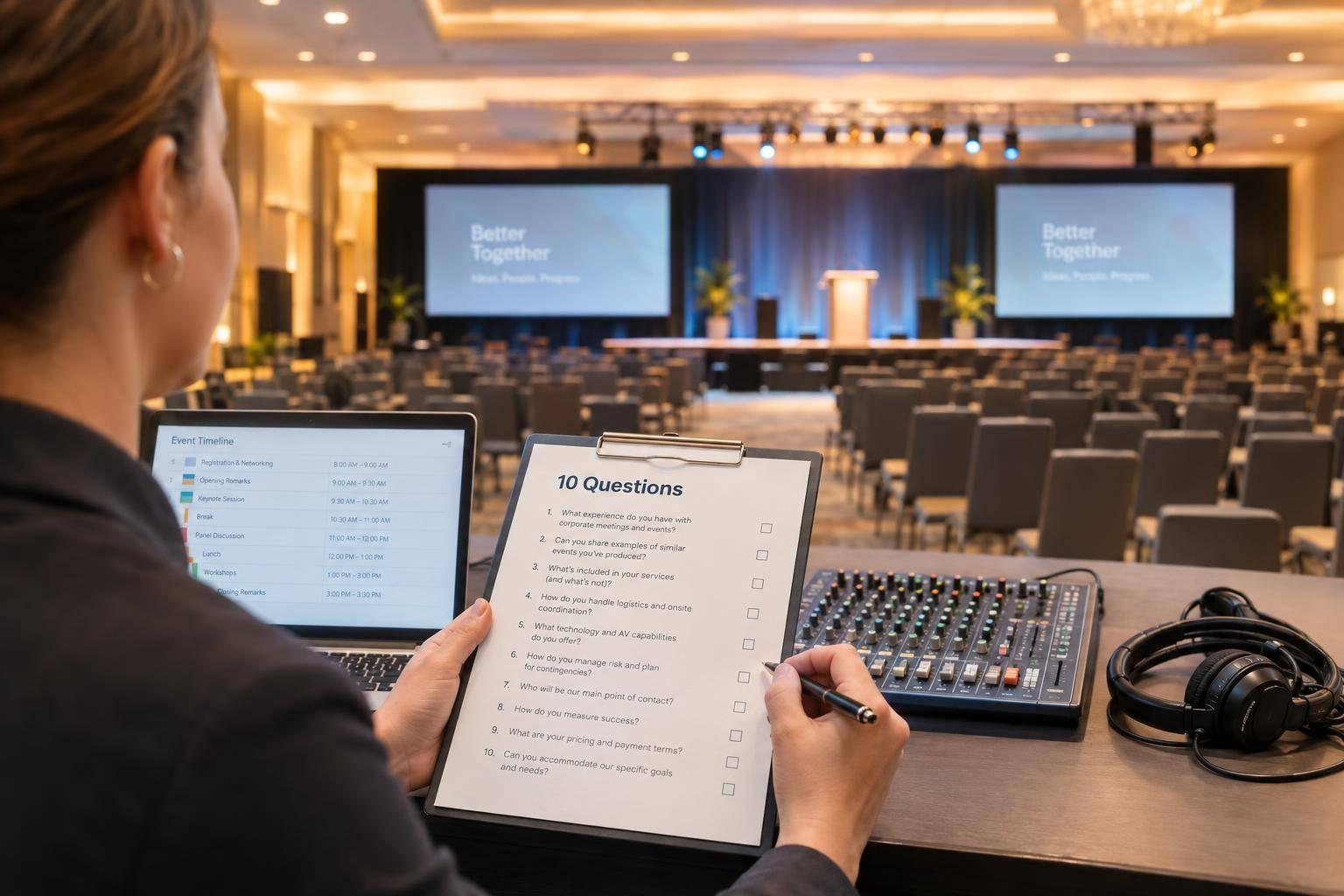
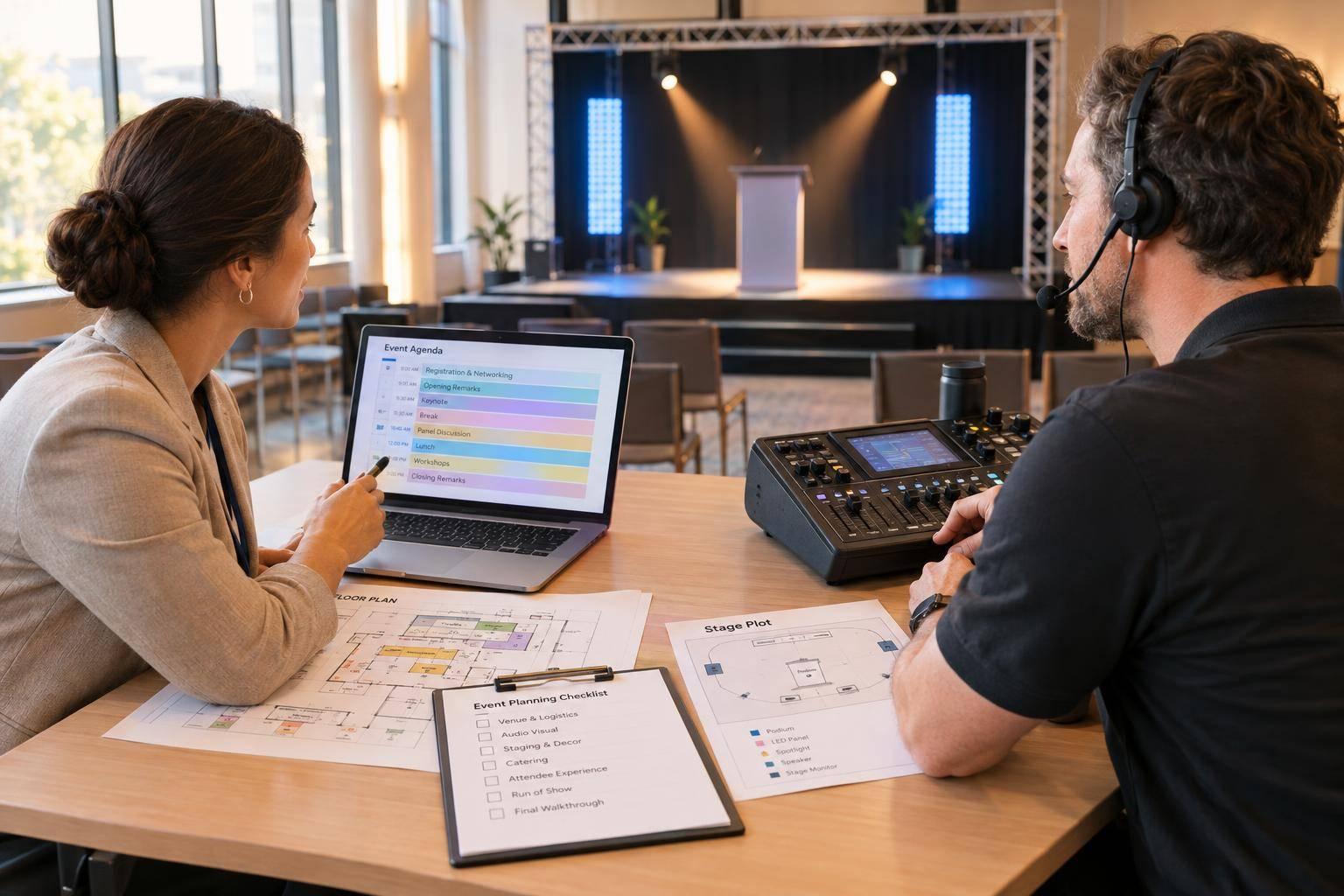
Your Conference Has Multiple Rooms And One Standard To Meet. Corporate Optics Can Help.

Chief Executive Officer
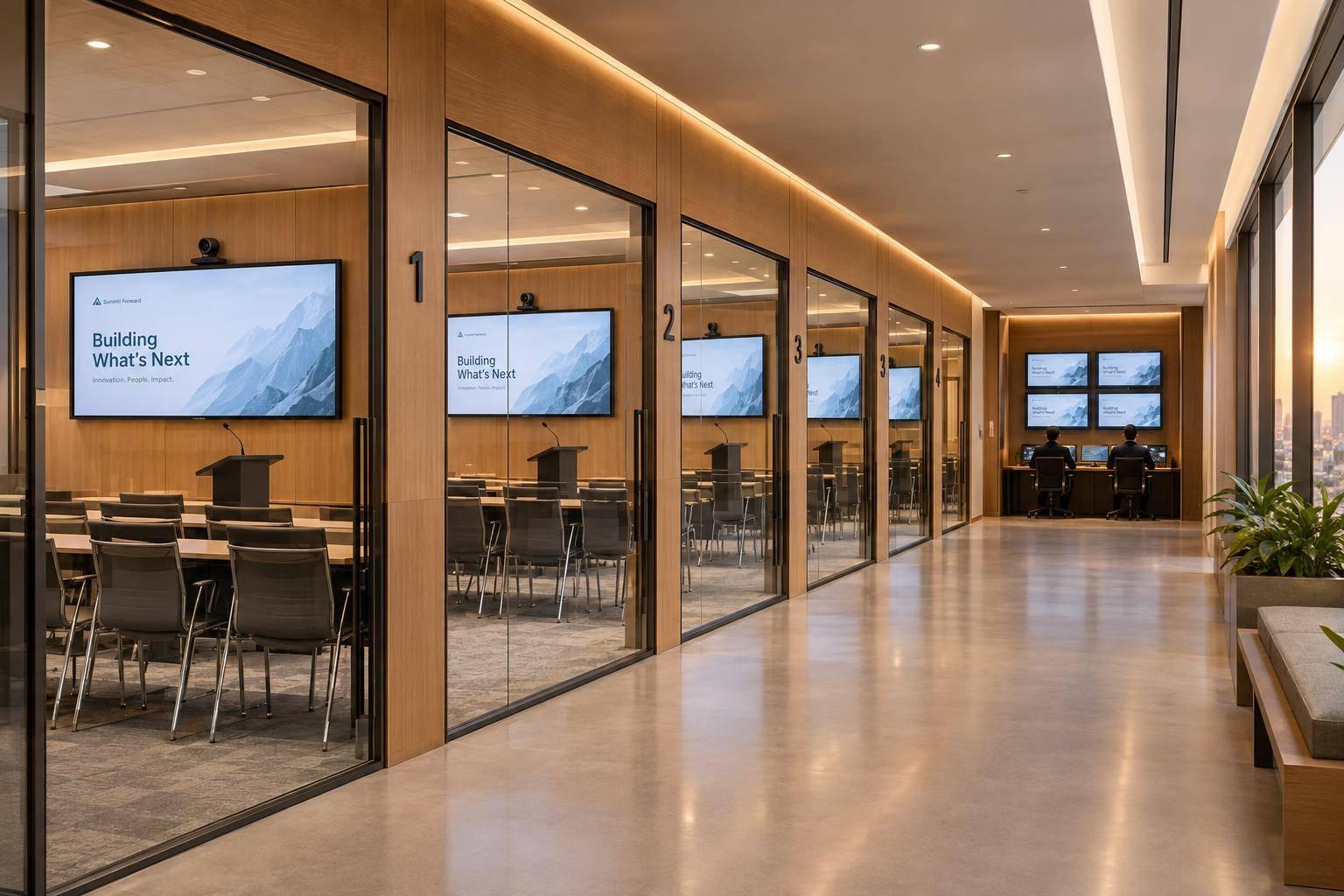
We follow AV production best practices for large conferences to plan for one standard across your event - not the same equipment in every room. That means matching each setup to the room, testing sound and slides, and assigning clear support contacts before sessions begin.
Our approach brings the work into one plan:
- Room-by-room design: Check sightlines, acoustics, power, network access, and accessibility.
- Shared procedures: Set the same steps for presenter connections, microphone checks, and file changes.
- Testing and staffing: Check each signal path, rehearse handoffs, and assign technicians based on session needs.
- Backup plans: Prepare spare microphones, loaded laptops, and recovery steps for streaming or playback faults.
We recommend collecting presentation files 1–2 weeks before the event so there’s time to test them. From captioning to recording, we plan around what your sessions need - with <u>clear responsibilities</u> and tested backups.
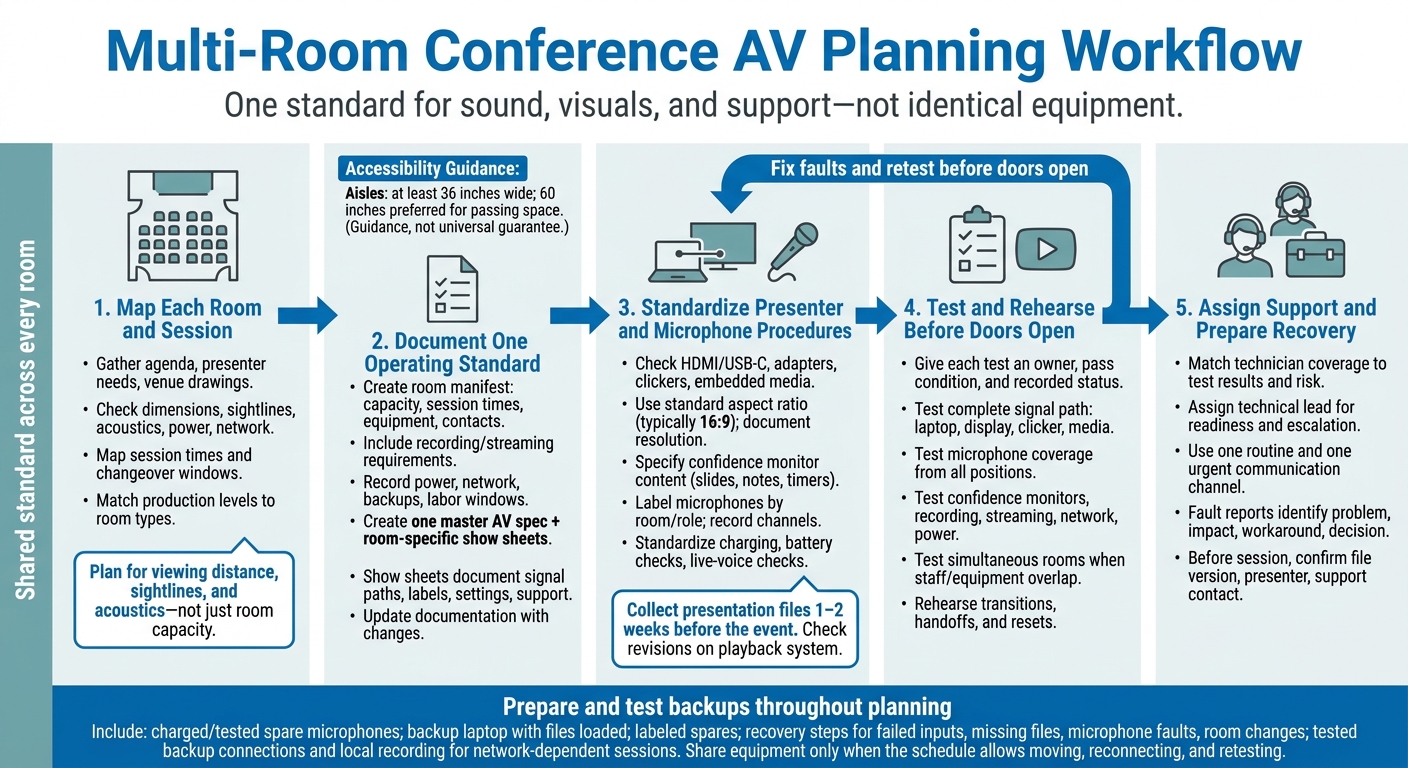
Multi-Room Conference AV Planning Workflow
Plan AV for Each Room
Corporate Optics can turn the agenda, presenter needs, attendance, and venue drawings into a room-by-room AV plan that matches each session format. Confirm those details, then map session times alongside setup and changeover windows. Use that plan as the baseline for consistent procedures across rooms.
Check Room Layouts and Infrastructure
Walk each room and record its dimensions, ceiling height, seating layout, and stage or lectern location. Check sightlines from the farthest seats and accessible seating areas. Columns, glare, and low ceilings can limit screen placement. HVAC noise and reflective surfaces affect microphone and loudspeaker choices. Plan for viewing distance, sightlines, and acoustics - not just room capacity.
Verify outlet locations, circuit capacity, cable routes, and wired network access with venue staff. Match equipment loads to manufacturer specifications: nearby outlets don’t guarantee enough power. Keep equipment and cables out of circulation paths. Accessibility guidance recommends aisles at least 36 inches wide, with 60 inches preferred for passing space.
Define Session Needs and Production Levels
Create one room manifest to apply the production standard across room types. Include:
- Capacity, session times, inputs, microphone counts, speaker coverage, displays, confidence monitors, and technician contacts.
- Recording, streaming, remote participation, and overflow-feed needs, where required.
- Power, network, backups, labor, and strike windows for production planning and budgeting.
Match production levels to the session format. Discussion rooms may need a display, tabletop microphones, and scheduled technician checks. Standard breakouts may need presenter and audience microphones, playback audio, and assigned technician coverage. Larger or hybrid sessions may need distributed speakers, multiple displays, cameras, switching, and dedicated technical staff.
Budget each room separately while keeping speech clear and visuals readable throughout the venue. Share equipment only when the schedule leaves enough time to move, reconnect, and retest it.
As each room is mapped, Corporate Optics can set consistent procedures for presenters, microphone use, and support staff across the venue.
sbb-itb-ae35a94
Set Shared AV Standards
Turn the room plan into a master AV spec and room-specific show sheets. Corporate Optics can define the master spec for speech, visuals, playback, control, and support, giving every room one operating standard. Each room’s show sheet should list signal paths, input labels, display settings, microphone assignments, and support contacts. Presenters and technicians need to follow the same steps for those standards to work.
Update the show sheet and shared instructions whenever an input, frequency, or control setting changes. Clearly mark room-specific exceptions. That lets technicians use the same workflow without assuming every room has the same capabilities.
Standardize Presentation and Microphone Procedures
Use one presenter connection procedure across rooms. Check HDMI and USB-C compatibility, required adapters, laptop charging, clickers, and embedded video with audio on the actual presentation computer. Set a standard aspect ratio - typically 16:9 - and record each room’s approved resolution. Specify whether the confidence monitor shows slides, notes, or timers. Confirm that switching sources keeps audio and video routing intact.
Label microphones consistently by room and role, and record receiver channels and assigned users on the show sheet. Set procedures for charging, battery checks, live-voice checks, mute control, and backup handoffs. Coordinate wireless frequencies across the venue, then test microphones in the intended presenter positions with the sound system on. Keep a charged, tested backup microphone ready for immediate handoff.
Run these checks before doors open to catch mismatches.
Compare Shared Standards With Ad Hoc Room Practices
Check whether every room follows the same operating rules.
| Area | Coordinated room practices | Uncoordinated room practices |
|---|---|---|
| Presentation inputs | Approved HDMI and USB-C workflows, labeled adapters, and tested backup inputs | Compatibility problems or missing adapters discovered at session start |
| Microphone management | Consistent labels, charging checks, coordinated frequencies, live-voice checks, mute rules, and backup handoffs | Batteries and frequencies go unchecked, with unclear assignments and inconsistent handoffs |
| Display settings | Documented aspect ratio, resolution, media playback, and confidence feeds | Cropped slides, missing audio, or incorrect presenter views |
| Documentation | One current master spec and room show sheet | Instructions scattered across emails and technician memory |
| Support escalation | Named room technician, backup contact, and recovery procedure | Staff search for help while the session is affected |
Test each room against the agreed standard and assign support coverage to match.
Test Systems and Coordinate Technicians
Once the shared standard is set, use one schedule and one escalation path for all rooms. Give every test an owner, a clear pass condition, and a recorded status. Turning the equipment on isn’t enough.
Test Every Room Before Sessions Begin
Check the complete signal path in each room using the presentation laptop, display or projector, clicker, files, embedded media, and approved aspect ratio and resolution. Test every microphone from the presenter’s speaking position. Check that wireless frequencies are clear and that speakers reach the front, middle, and rear of the room.
Where used, check confidence monitors, cameras, recording, livestream connections, network access, power, and backup paths. Set pass/fail criteria before testing, then record how each test was run and its result.
Test rooms at the same time if overlapping sessions will stretch shared staff or equipment. Rehearse speaker transitions, microphone handoffs, and room resets against the final run of show. Leave enough time to fix faults and retest affected systems before doors open. Use the results to guide staffing and escalation.
Assign Technician Coverage and Communication
Match technician coverage to the test results and session risk. Simple breakouts in nearby rooms may share a technician. Executive presentations, panels, and sessions that rely heavily on streaming generally need dedicated coverage. Assign a technical lead to approve readiness and handle escalation. Plan coverage for rehearsals, presenter arrivals, resets, equipment changes, breaks, and technician handoffs.
Use one channel for routine updates and a separate path for urgent issues. Each fault report should state the problem, its effect on attendees, the immediate workaround, and the decision needed. Make clear who can authorize schedule or room changes.
Prepare Presenters and Backup Plans
Collect presentation files one to two weeks before the event. Check any later revisions on the assigned playback system. Before each session, confirm the presenter’s file version, stage position, and support contact. For panels, rehearse microphone handoffs and seating order.
Document recovery steps for failed inputs, missing files, microphone faults, and room changes. Keep a backup laptop with the files loaded and labeled spares on hand. For sessions that depend on the network, use tested backup connections and local recording.
Conclusion: Different Rooms, Consistent Production
Consistent production means one standard for sound, visuals, and support - not identical equipment. Room-specific design, shared workflows, testing, and technician coverage keep the event unified.
Share your room layouts, session schedule, presentation formats, and recording requirements with Corporate Optics. Request a room-by-room scope that combines AV design, presenter support, on-site staffing, and streaming into one plan your team can carry out. Ask for separate breakdowns of design, setup, equipment, staffing, streaming, recording, and deliverables.
FAQs
How can I prioritize AV spending across rooms?
Plan AV spending room by room, rather than by total headcount alone. Give each room a production tier - basic, standard, or full-production - based on the session format and audience size. A keynote usually calls for full production, while a small workshop may only need a basic package.
Build a line-by-line requirements worksheet to keep quotes consistent across rooms. Then focus spending on the highest-risk areas, such as keeping the keynote running smoothly or ensuring a reliable hybrid experience.
How can I verify consistent AV quality?
Run daily pre-show checks in every room before doors open. Test audio, lighting, and playback, and use the same equipment and settings across rooms to keep performance consistent. Rehearse cues with presenters before audiences arrive, checking transitions, microphone levels, and visual cues.
During the event, station dedicated on-site technicians in key rooms. Have a central team monitor signals and communication so they can address issues in real time.
How are last-minute session changes handled?
Corporate Optics keeps sessions on schedule through centralized coordination and documented workflows. Before putting a change into action, the team checks whether it’s technically feasible. The production lead or show caller then updates the run of show and immediately notifies the audio, video, and lighting teams.
On-site teams keep backup equipment ready for quick swaps. If a presenter has an issue, they follow established procedures - such as changing the session order or playing recorded segments - to keep the room moving.
Related Blog Posts
- Need To Find A Conference AV Team? Reach Out Corporate Optics For Lighting, Video, Audio, Staging & Scenic Design, Streaming, And Show Direction.
- 2 Reasons To Use Corporate Optics For Conference Production In Las Vegas For Multi-Day Conferences.
- 3 Reasons To Work With Corporate Optics With Full-Service AV Production Experience For Your Next Conference.
- 5 Reasons To Partner With Corporate Optics To Produce Your Next Conference.


Streamline your workflow, achieve more

Lorem ipsum dolor sit amet, consectetur adipiscing elit. Maecenas ac velit pellentesque, feugiat justo sed, aliquet felis.



Lorem ipsum dolor sit amet, consectetur adipiscing elit. Maecenas ac velit pellentesque, feugiat justo sed, aliquet felis.